

Workspaces on your iPhone
See every workspace and project on your Macs, which ones need you, and which are busy.
Pilot Pro shows the same workspaces and projects you have open in Inferise Code on your Mac. To see them, tap Workspaces at the top left of Waiting.
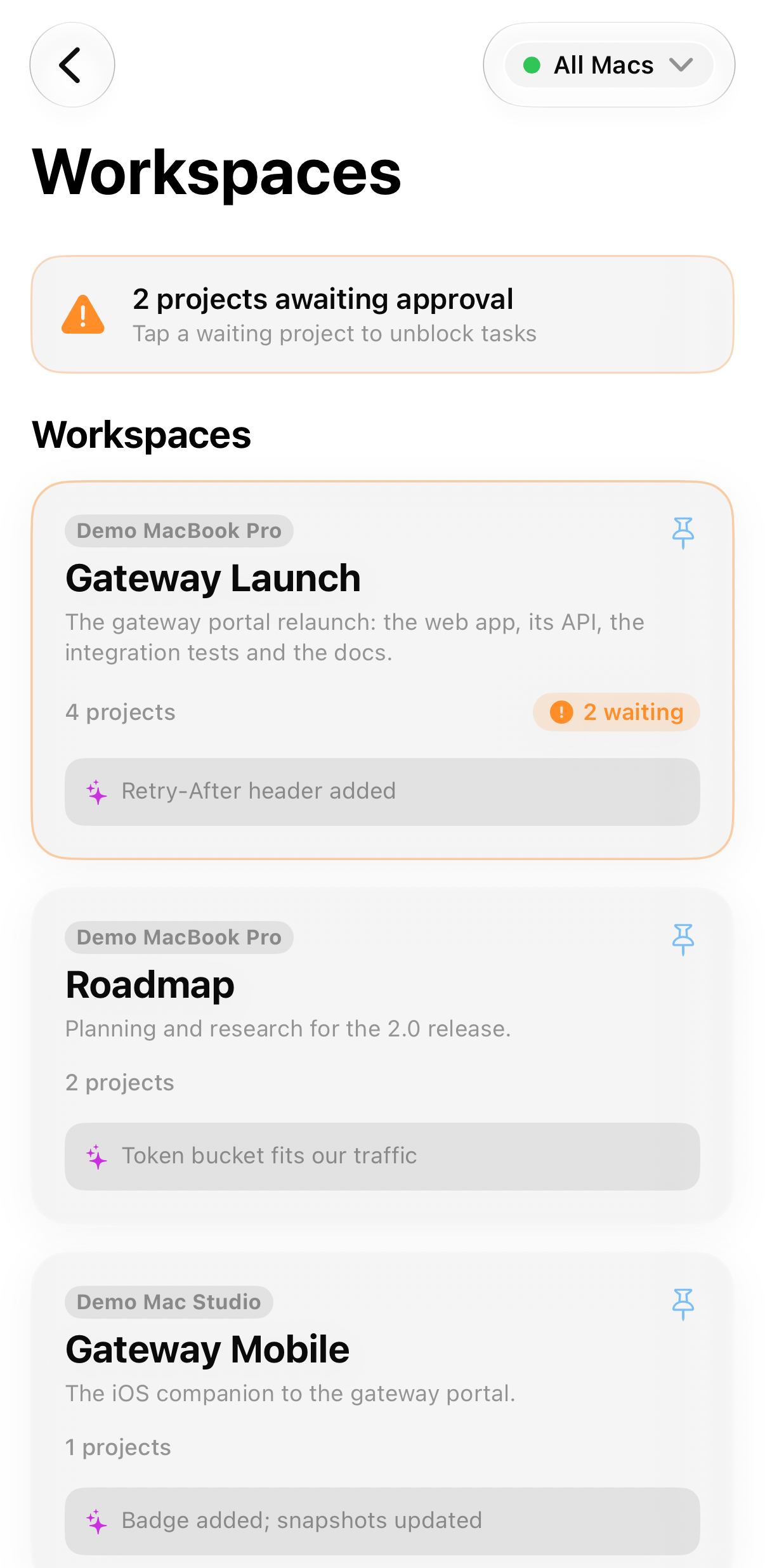
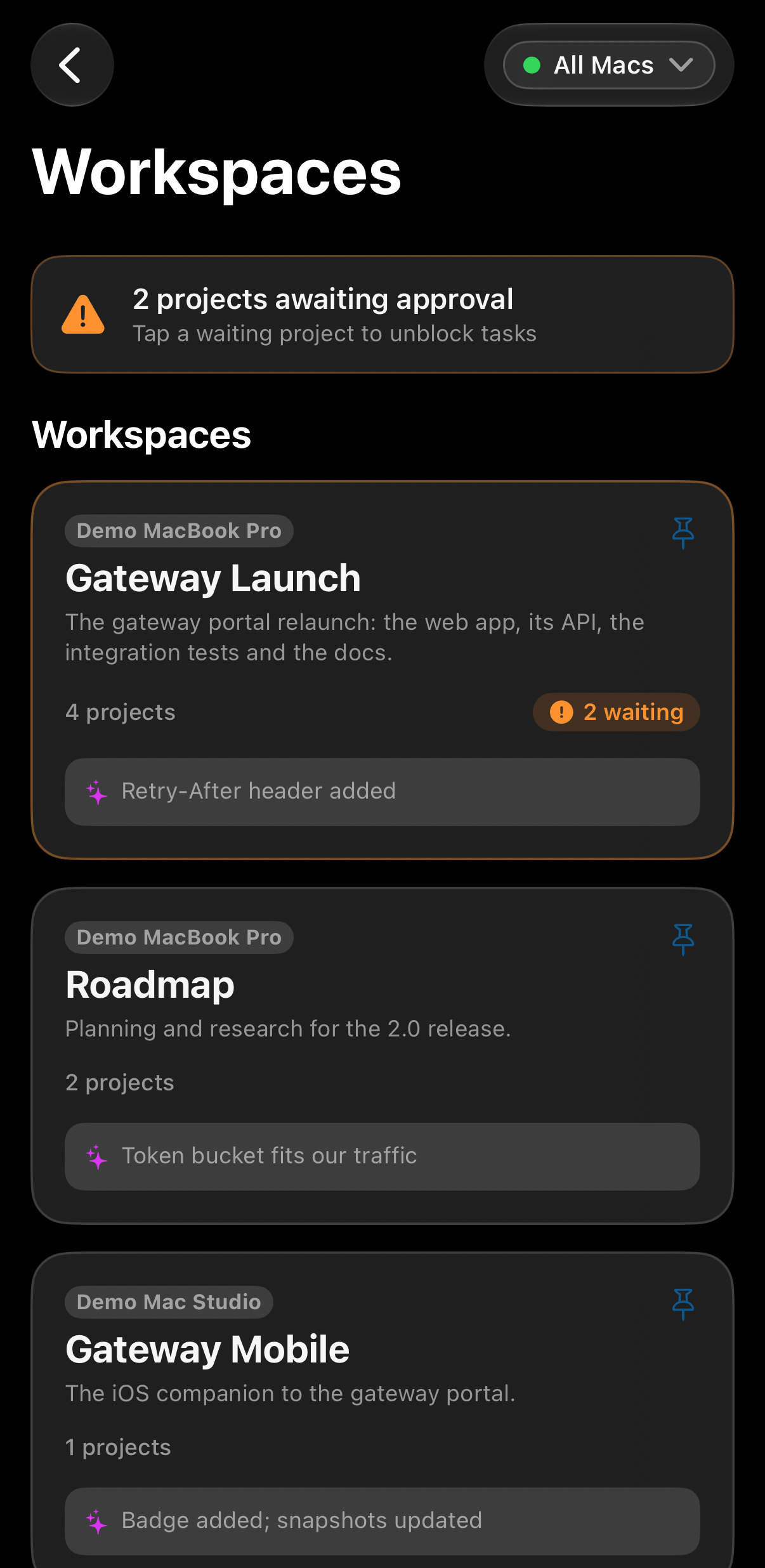
The Workspaces screen
- The banner at the top says whether anything needs you, such as 2 projects awaiting approval, or that all projects are running smoothly.
- A card for each workspace shows which Mac it's on, its description, how many projects it has, how many are waiting, and the latest thing it finished.
If more than one Mac is connected to your account, tap All Macs at the top right to see just one.
To keep a workspace at the top, tap the pin on its card.
Inside a workspace
Tap a workspace card to see its projects. Each project's card shows what it is doing, which model it uses, how many tasks it has, and your latest request with its result.
The buttons along the top filter the projects:
| Filter | Shows projects that are |
|---|---|
| All | Every project in the workspace. |
| Waiting | Stopped until you answer. |
| Working | Busy right now. |
| Idle | Ready for their next message. |
| Dormant | Not used for a while. |
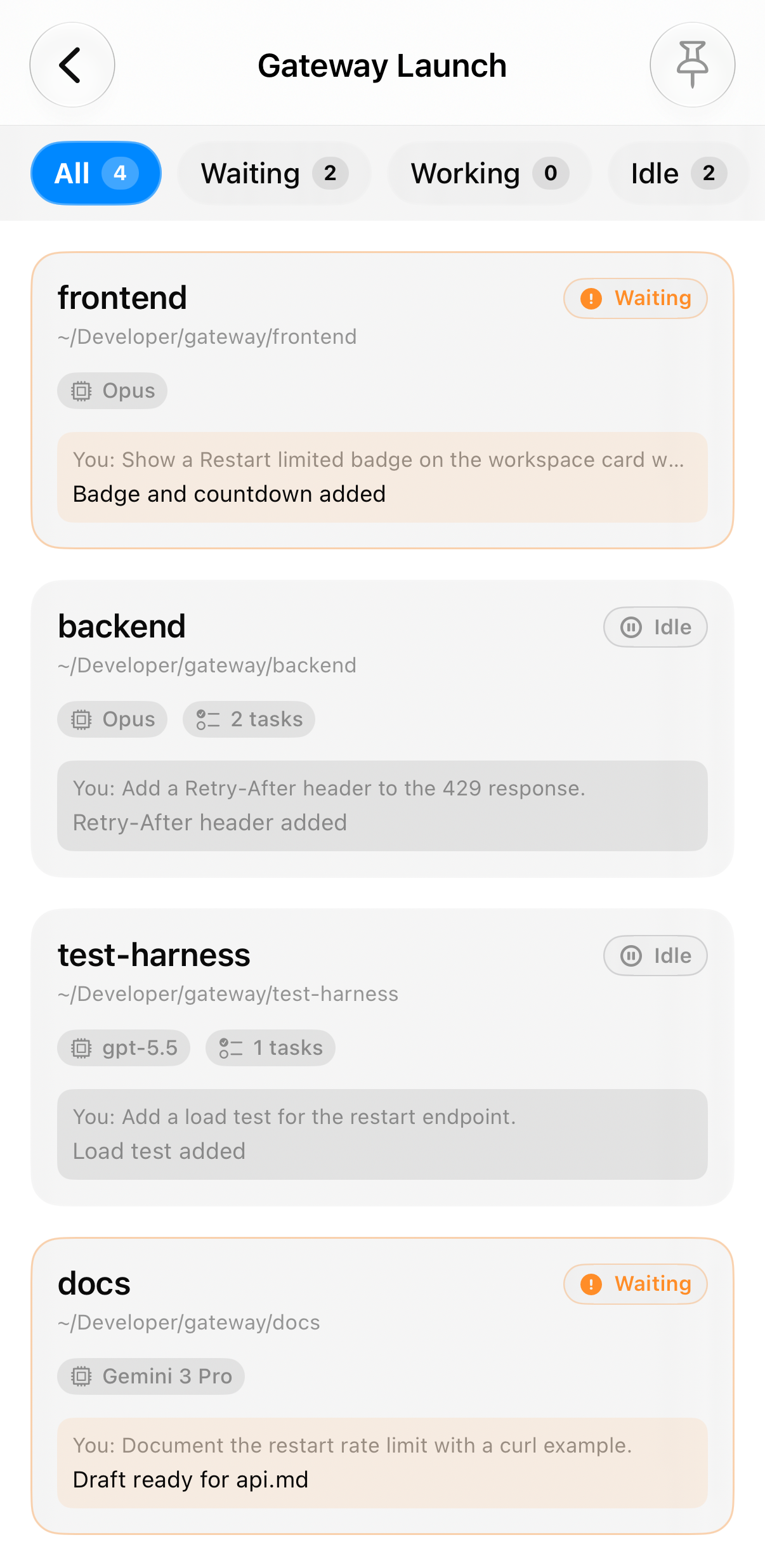
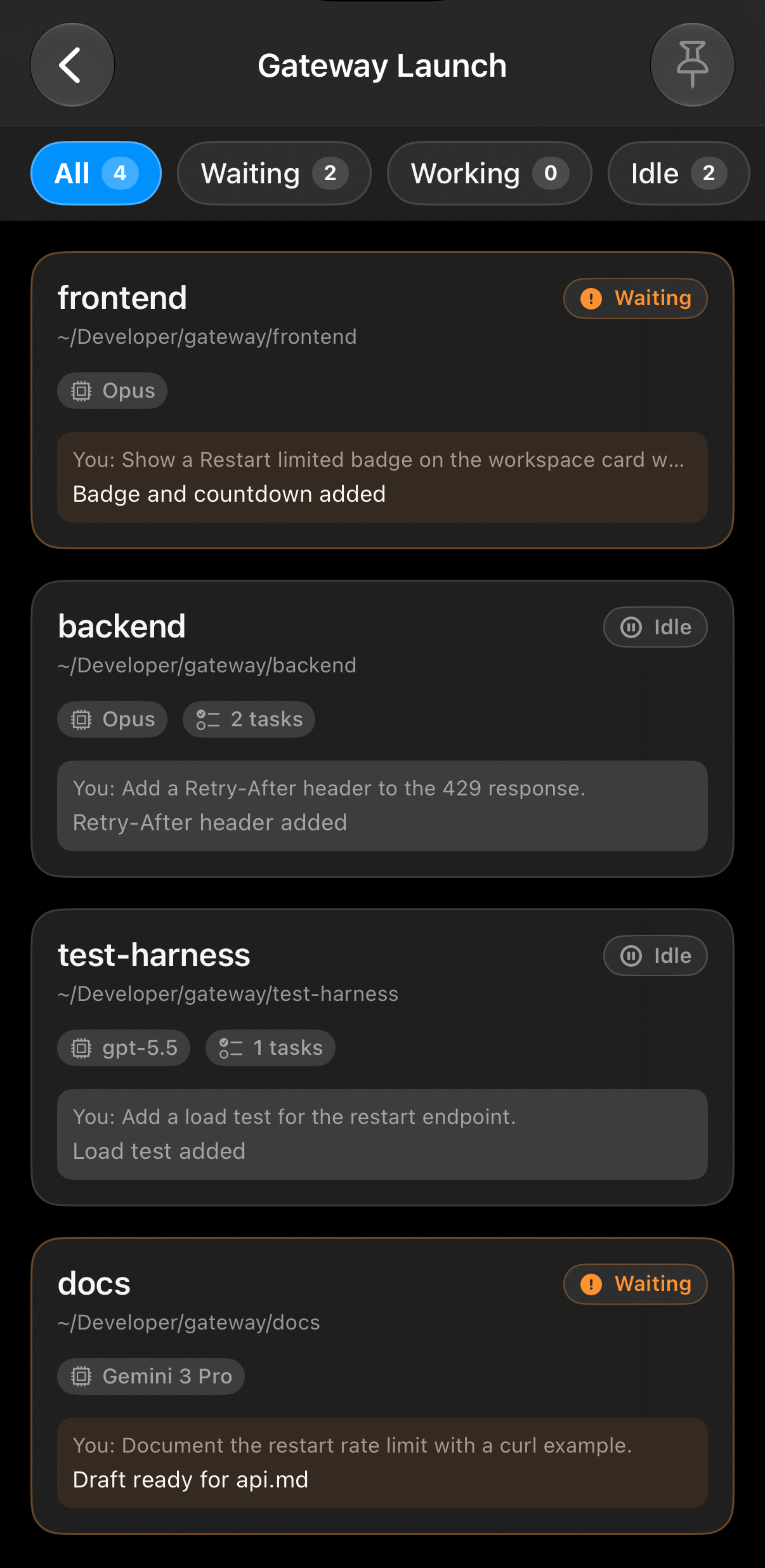
Tap a project to open its conversation. See Talk to a project.
Something unclear or out of date? Tell us and we will fix it.