

Getting started with Pilot Pro
Connect your iPhone to Inferise Code on your Mac, so you can answer your projects from anywhere.
What you'll do
- Connect Inferise Code on your Mac to your Inferise account.
- Install Pilot Pro and let it send you notifications.
- Add your iPhone by matching a number on your Mac.
What you need
- A Mac with Inferise Code, and at least one workspace. If you don't have one yet, start with Getting started with Inferise Code.
- An iPhone running the latest version of iOS.
- Your Mac and iPhone side by side for a couple of minutes.
How it works
Your projects keep running on your Mac. Pilot Pro shows you what they are doing and passes your answers back. Nothing runs on the phone itself, so your Mac needs to be on and Inferise Code open.
There are no passwords. Your Mac and your iPhone each sign in with a passkey, a secure sign-in stored on the device and unlocked with Face ID, Touch ID or your device passcode.
On your Mac: connect Inferise Code
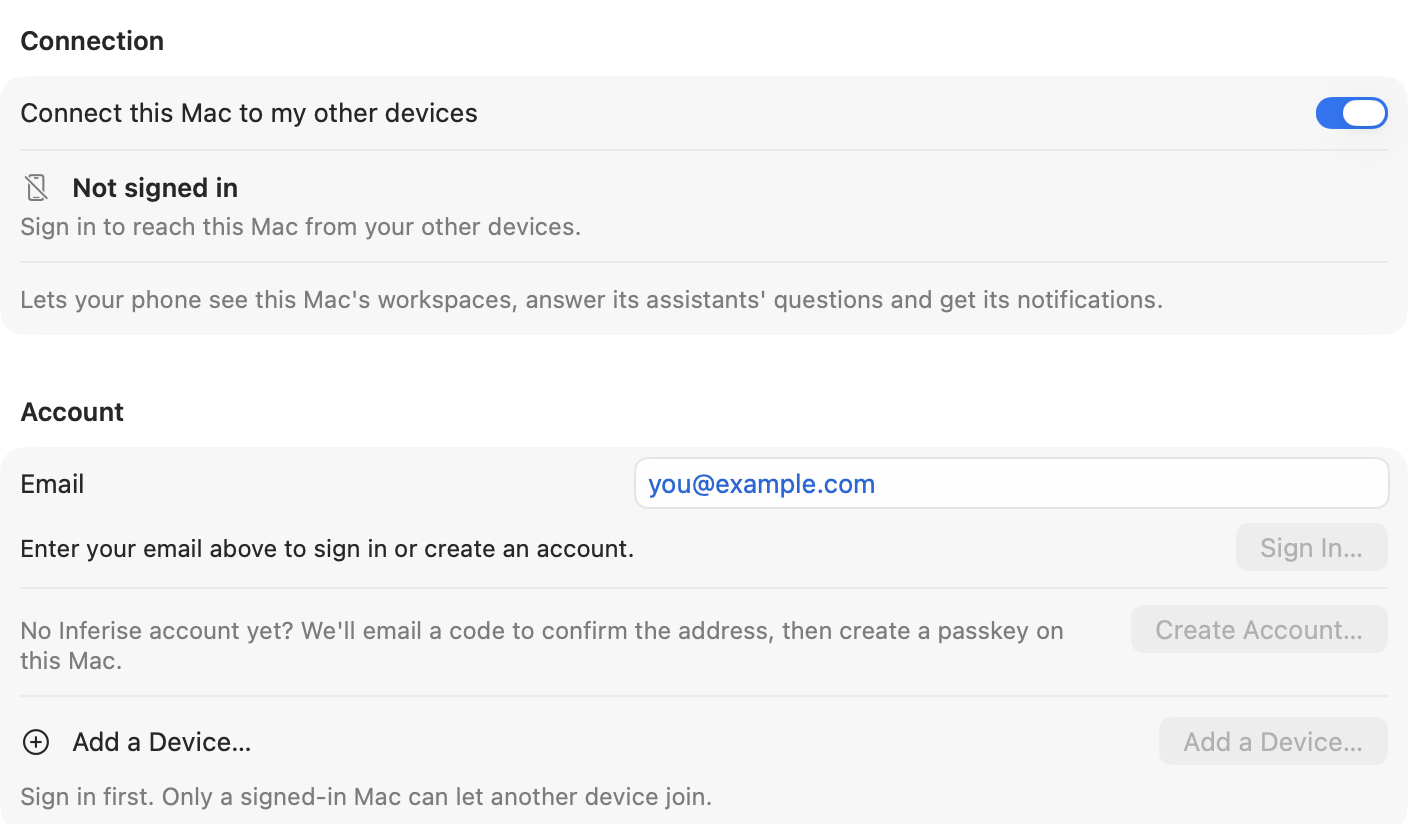
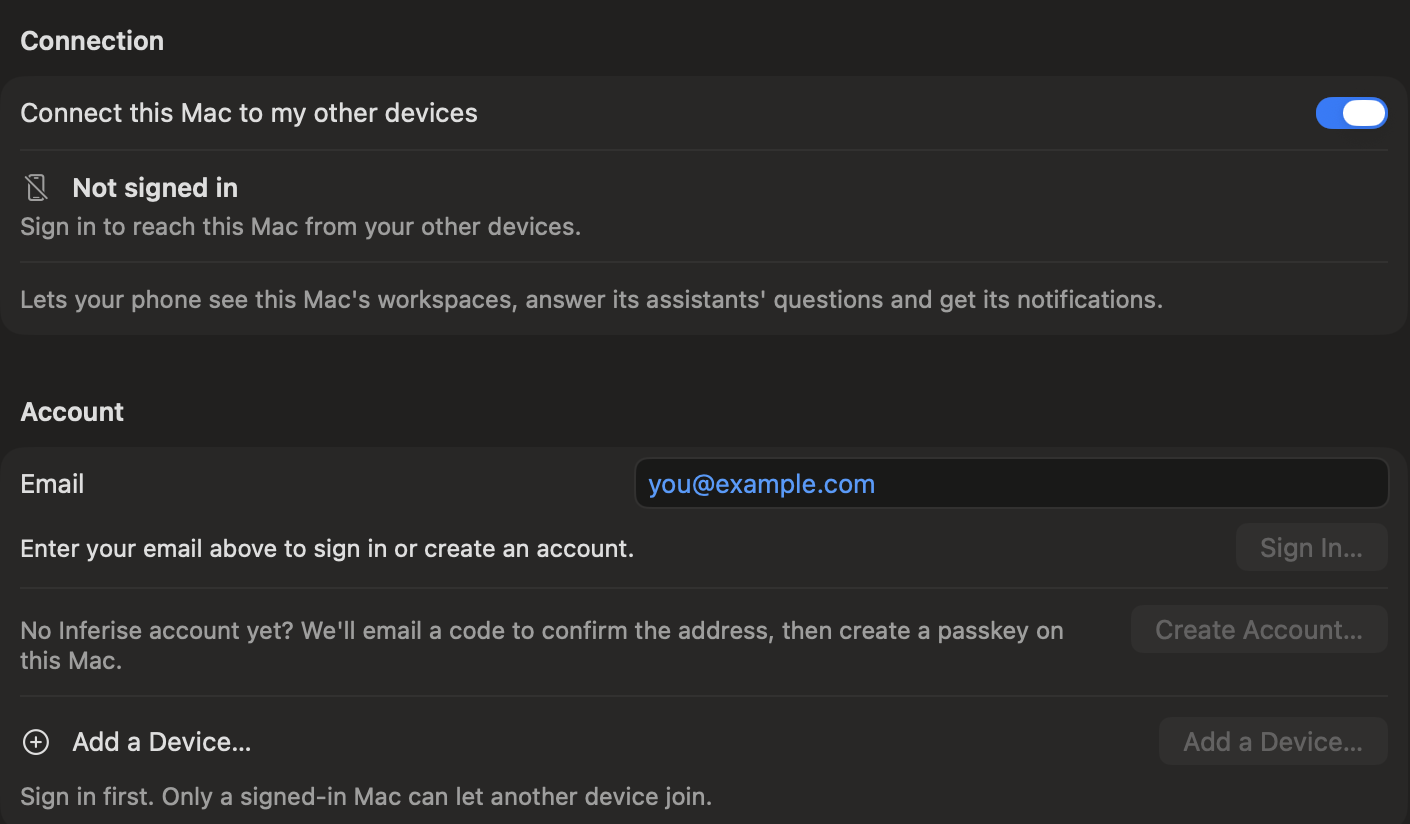
- In Inferise Code, choose Inferise Code ▸ Settings… from the menu bar and click Remote.
- Turn on Connect this Mac to my other devices.
- Under Account, type your email address in Email.
- Click Sign In…. If you don't have an Inferise account yet, click Create Account… instead. Inferise emails you a code to confirm the address, then makes a passkey on your Mac.
- Click Add a Device…. For the next few minutes, your Mac accepts a request from a new device. Leave this window open.
On your iPhone: install and sign in
- Install Pilot Pro from the App Store, and open it.
When Pilot Pro asks to send you notifications, tap Allow. Notifications are how your projects reach you when the app isn't open, so this one matters.
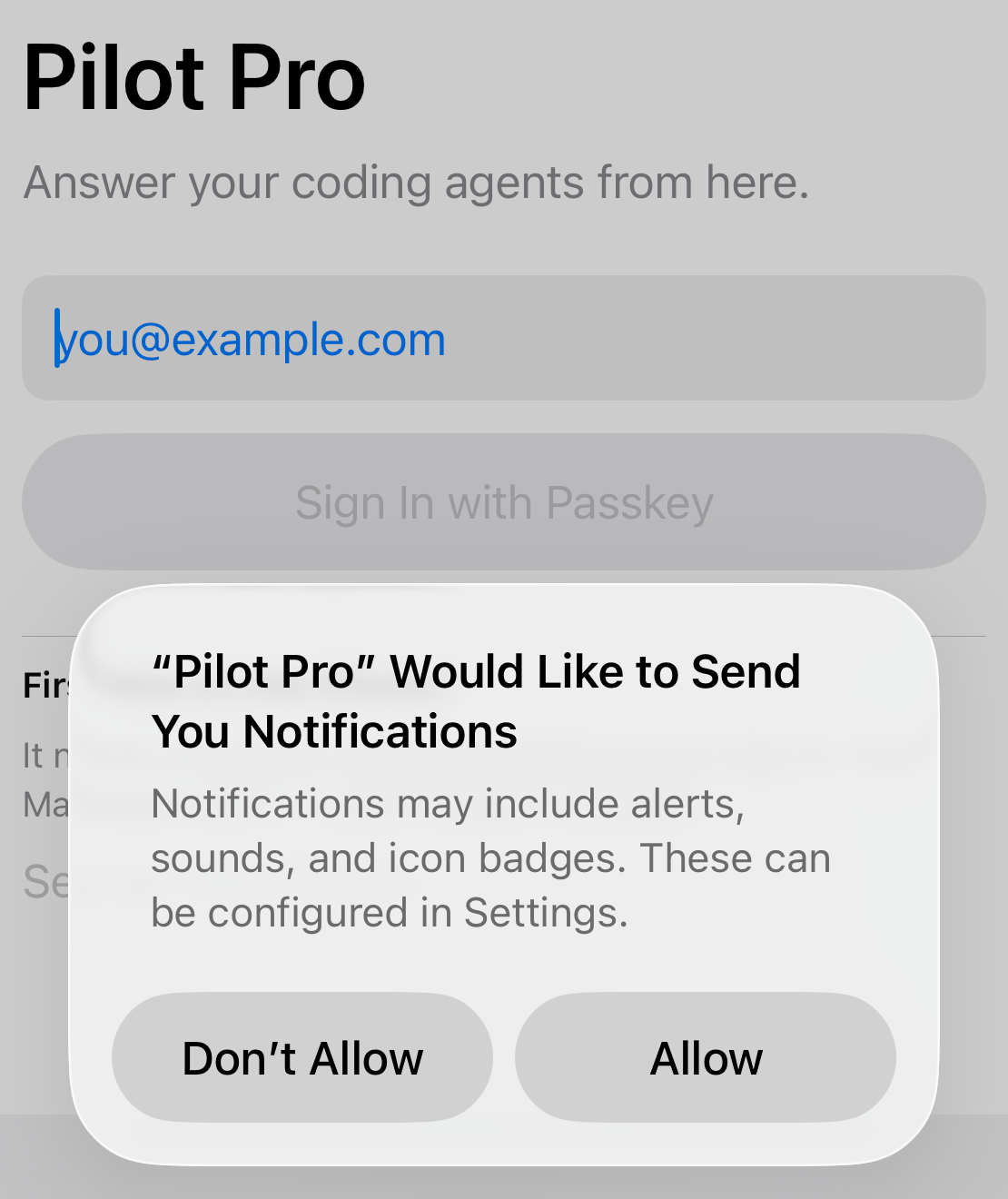
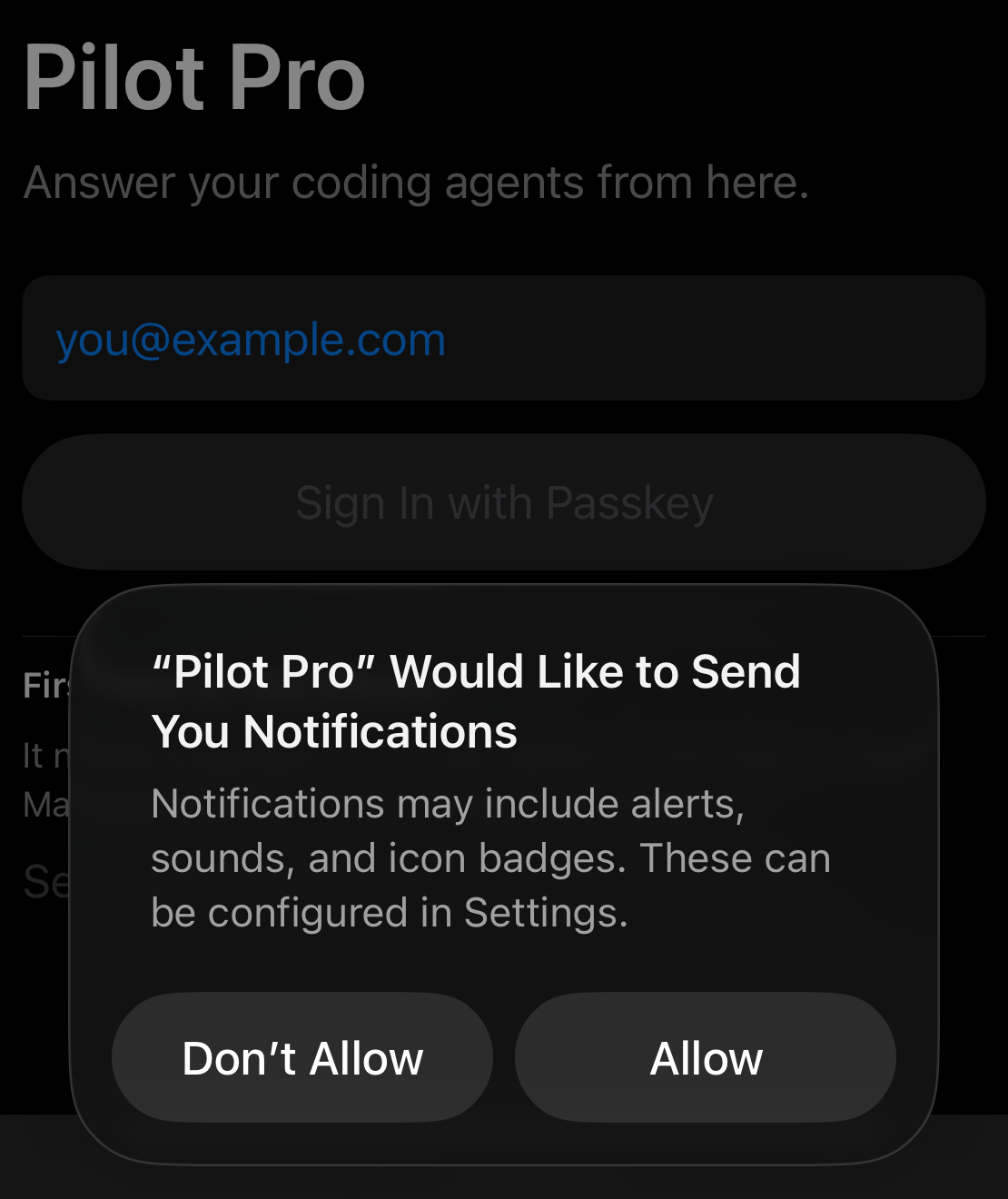
Without notifications, you only see questions while Pilot Pro is open. - Type the same email address you used on your Mac.
- Under First time on this iPhone?, tap Set Up This iPhone.
Match the number
Your iPhone shows one large number, with the words In Inferise Code on your Mac, tap this number. It will be one of three. At the same moment, your Mac shows Approve this device? with three numbers.
- On your Mac, click the number that matches the one on your iPhone.
- On your iPhone, confirm with Face ID, Touch ID or your passcode when asked. Pilot Pro makes a passkey for this iPhone.
When it's done, your iPhone says This iPhone is set up, and opens on Waiting.
Check the connection
At the top right of Waiting, two small signs show the connection:
- A green iPhone means your Mac has been in touch recently. When it's grey, your Mac may be asleep, or Inferise Code is closed.
- Green radio waves mean Pilot Pro is connected right now. A bell means new questions will arrive as notifications.
What's next
- Answer questions from the Waiting list.
- Browse your workspaces and see what each project is doing.
- Talk to a project from your iPhone.
Something unclear or out of date? Tell us and we will fix it.