

Talk to a project
Read a project's conversation, send it a message, switch its model and run its tasks, all from your iPhone.
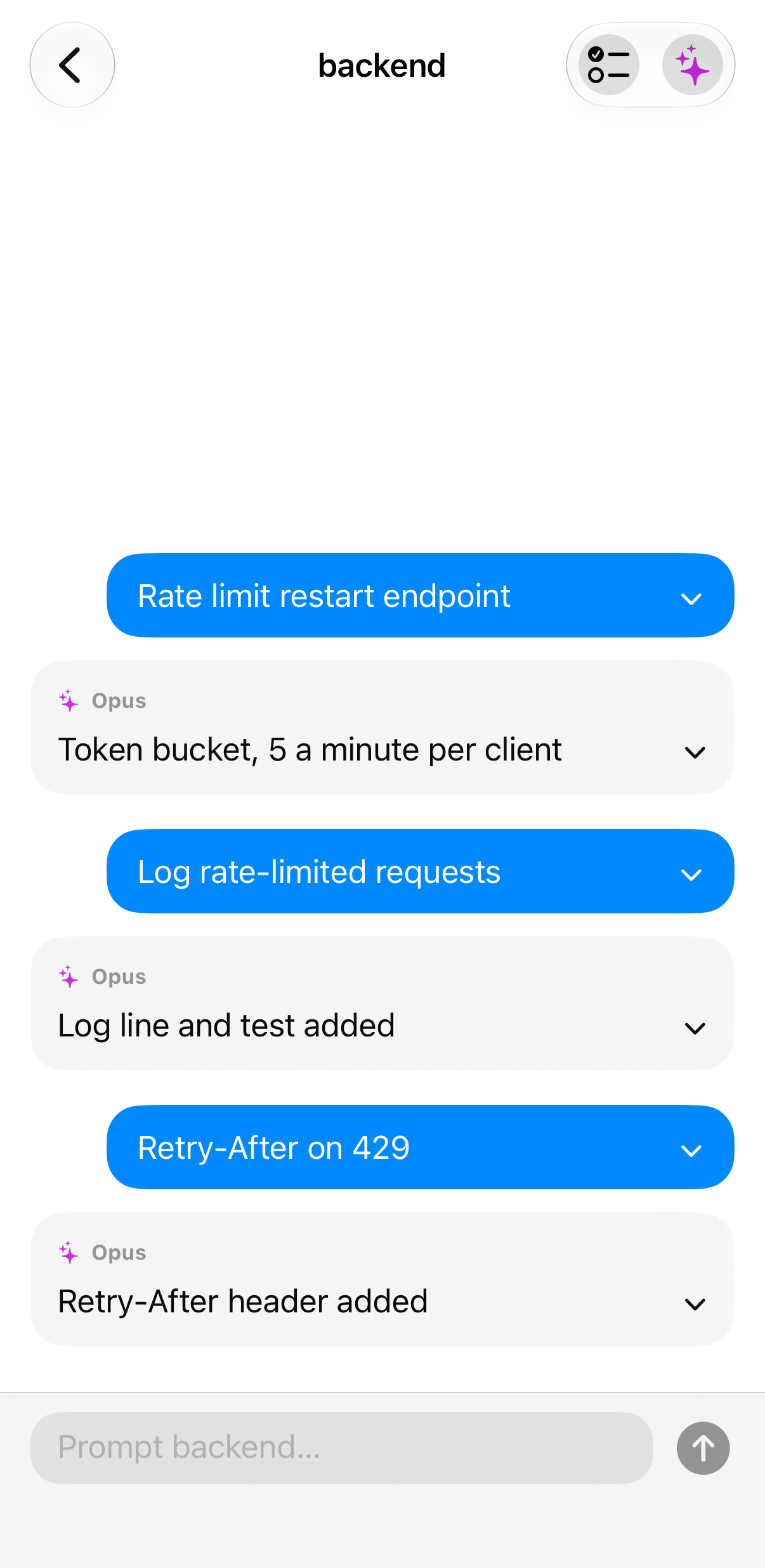
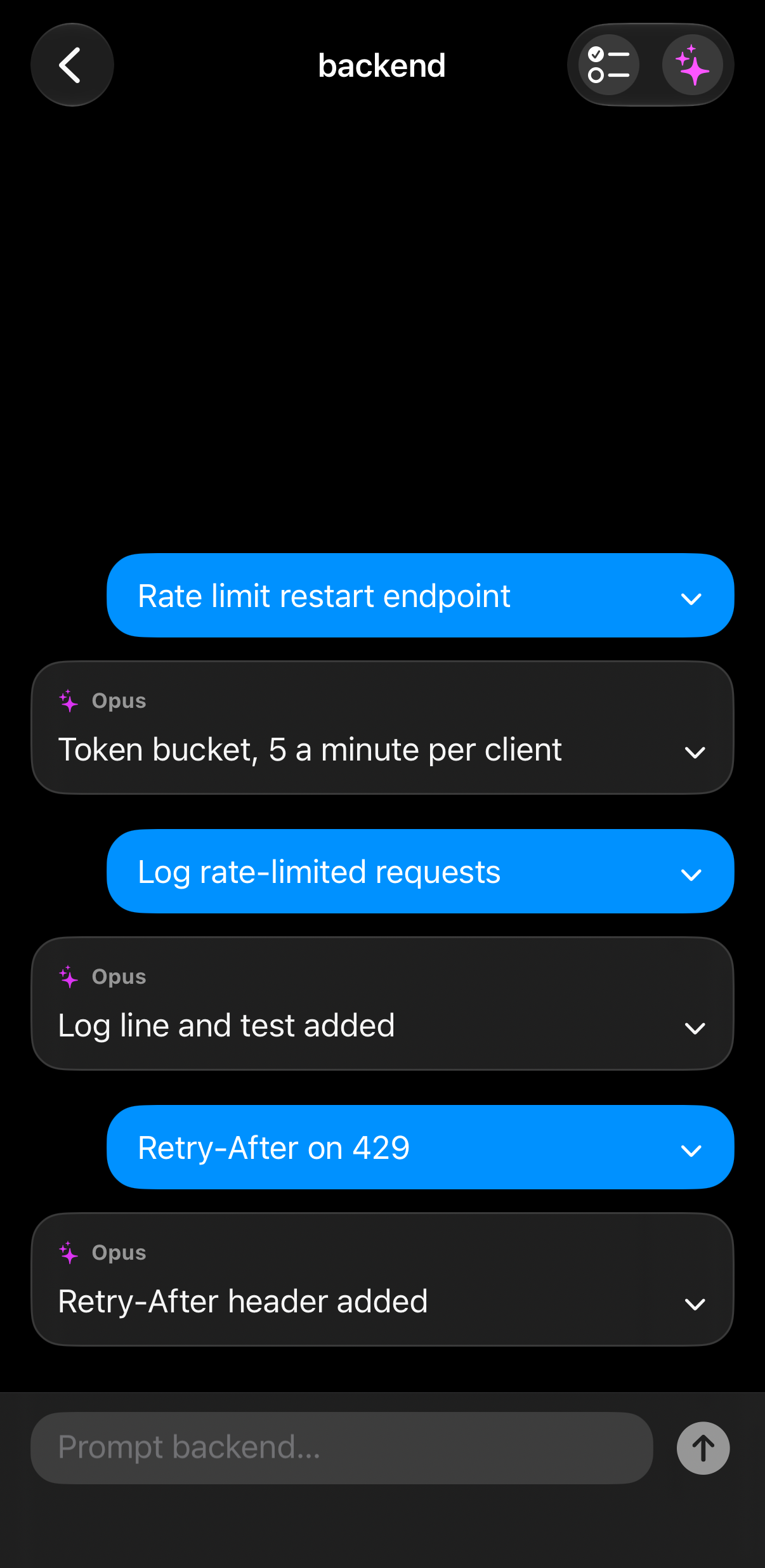
Each project's conversation on your iPhone is the same one you see in Inferise Code on your Mac. Whatever you send from your phone appears on your Mac too.
Send a message
- Open a project from Workspaces.
- Tap the message box at the bottom and type, as you would on your Mac.
- Tap the send button.
The project starts work on your Mac. While it works, you'll see Working on and your Mac's name. If it needs your permission, the request appears in the conversation, and in Waiting.
Each request and reply is folded up to a short summary. Tap one to read it in full.
Switch the model
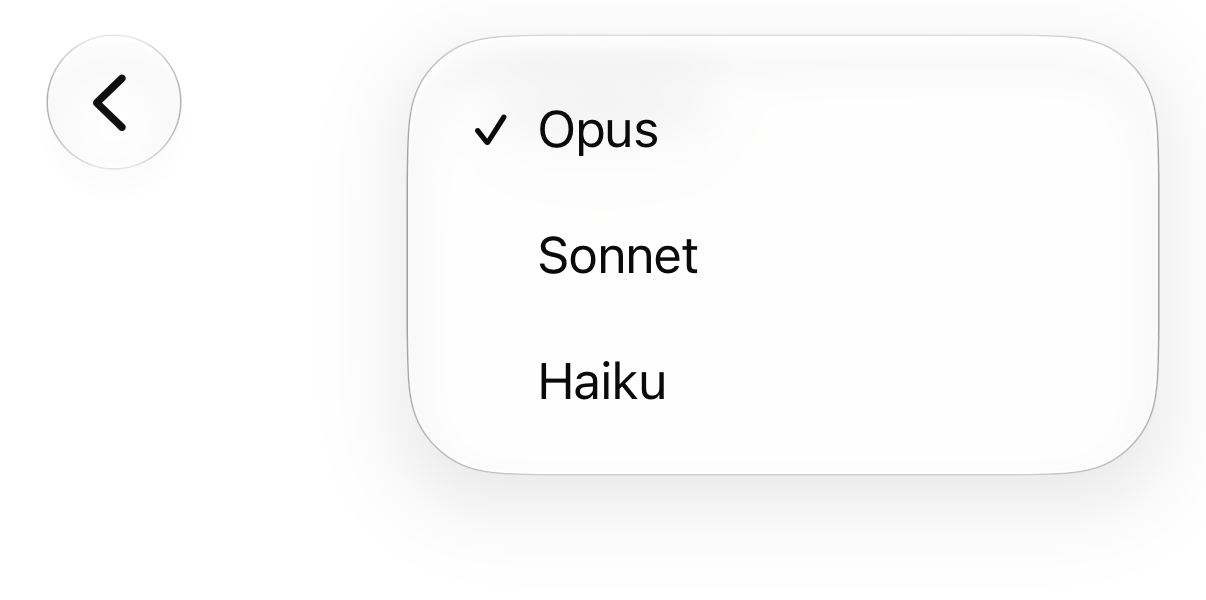
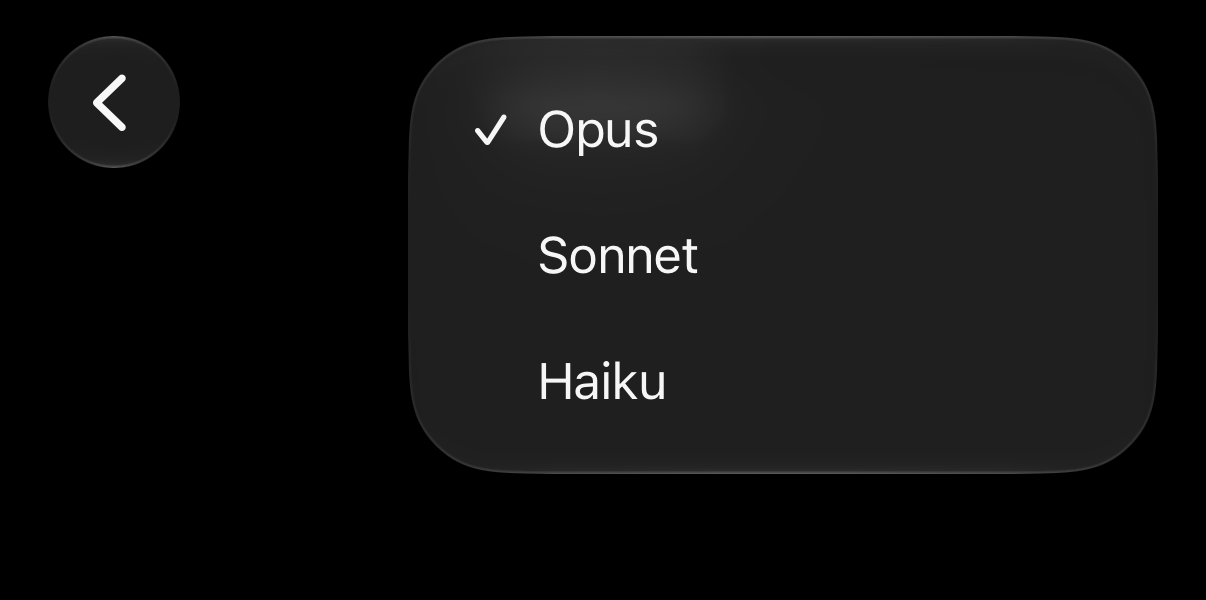
- Tap the sparkle button at the top right.
- Choose another model.
Run a Project Task
A project's Project Tasks can be started from your phone too.
- Tap the checklist button at the top right.
- Tap Run Now next to a task.
- Tap Done to go back to the conversation.
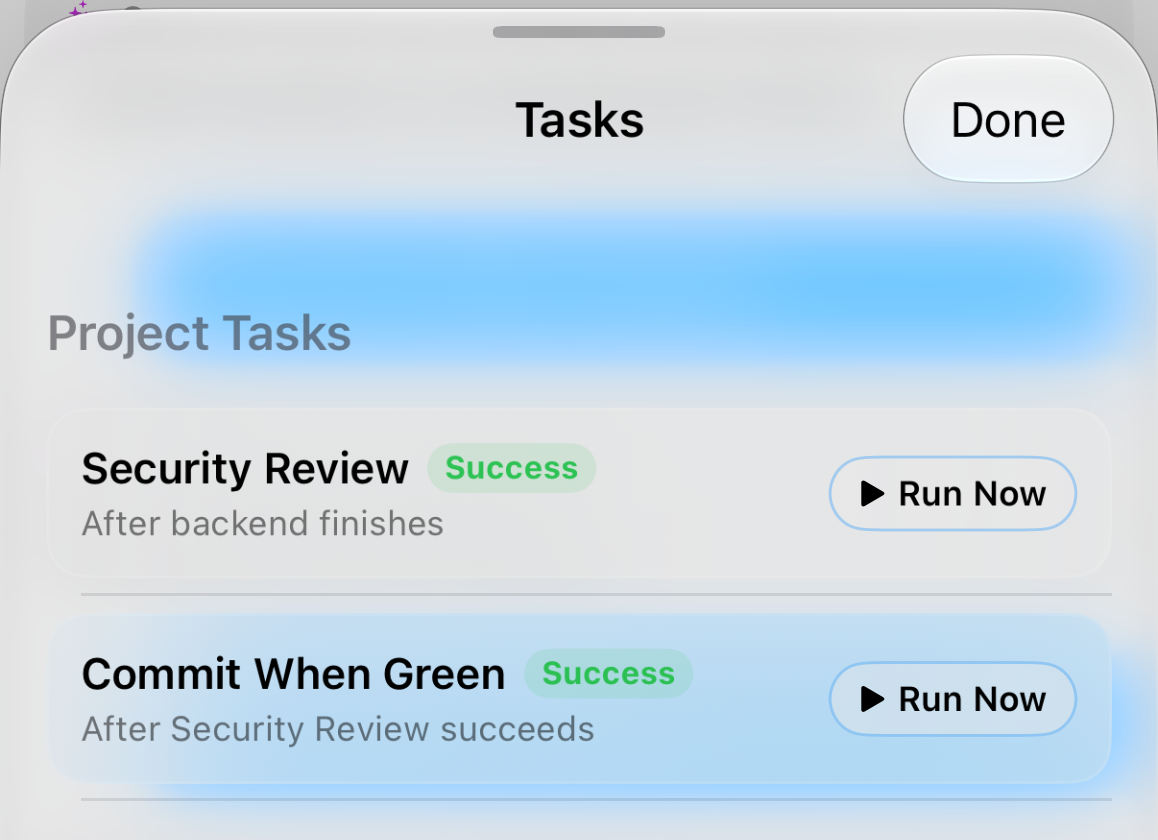
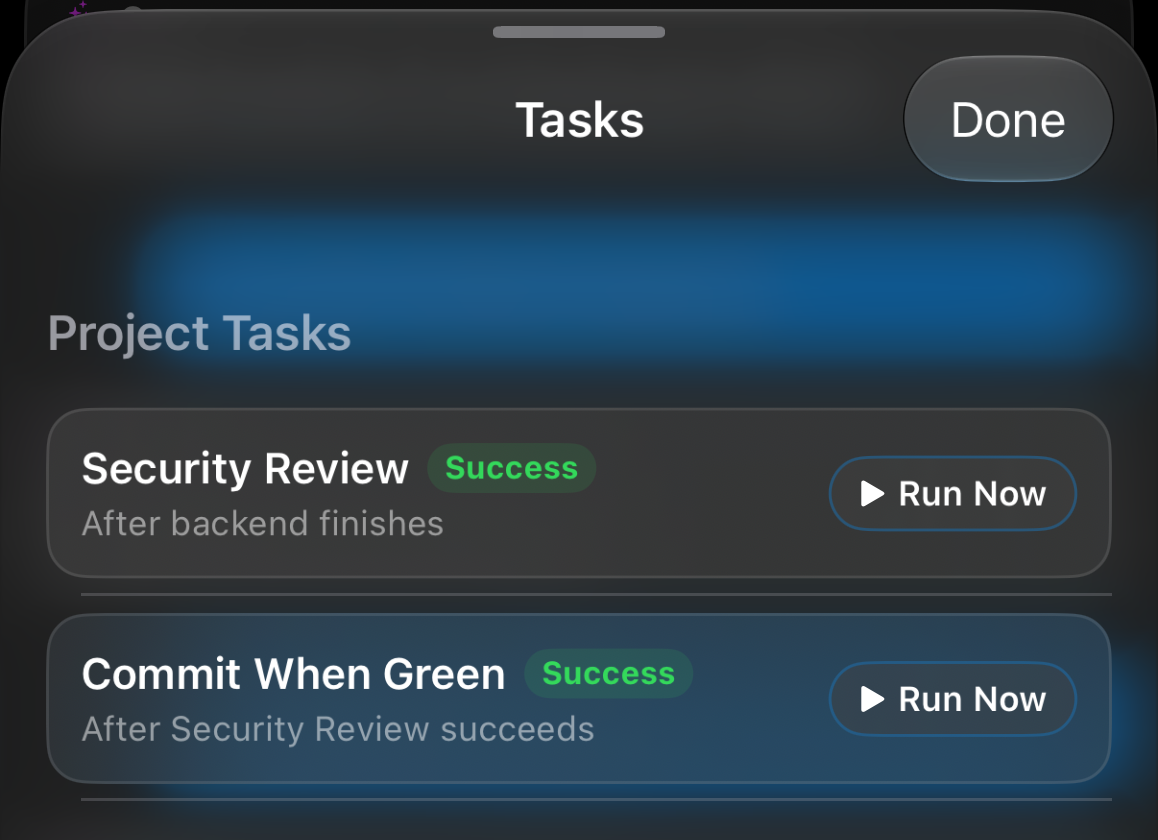
Tap a task to see its Recent Runs: when each ran, how long it took, and what it found.
Something unclear or out of date? Tell us and we will fix it.