

Project Tasks
Small, named jobs a project can run on its own, on a schedule, when files change, or when other work finishes.
A Project Task is a small job that belongs to a project. It has a name, a fixed set of instructions, and a rule for when it runs. For example:
- Weekly Rota Check looks for gaps in next week's rota every Monday morning.
- Summarise Policy Changes writes a short summary whenever a policy document changes.
- Letter Checker checks a letter against the style guide when the project asks it to.
Each run starts with a clean slate in the project's folder, so one run can't confuse the next. Tasks don't speak into your conversation. When one runs on its own, a short notice appears in the conversation instead, so you can see what it did.
See a project's tasks
A project with tasks shows them as cards stacked behind its chip on the Project Ribbon, with a number for how many there are. Double-click the chip to spread them out.
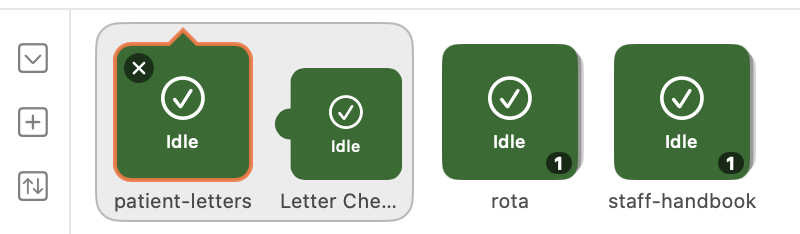
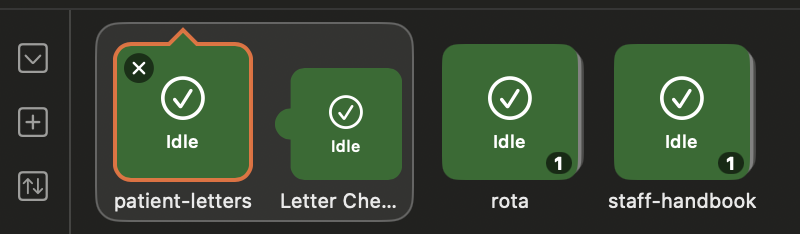
Click a task's chip to see its settings and its past runs.
Make a task
- Click the + button on the left of the Project Ribbon.
Choose New Project Task….
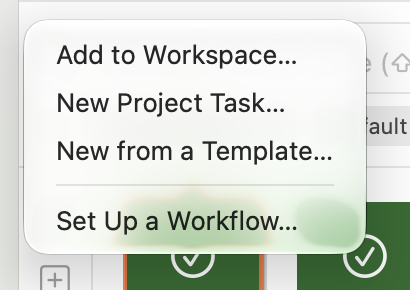
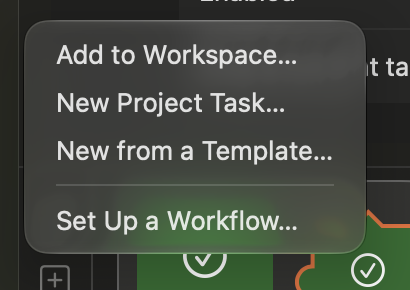
The same menu adds projects, tasks, templates and workflows. - Give the task a Name, or leave it blank and one is made from its instructions.
- Write its Instructions: what it should do each time it runs. Be specific, as you would for a new colleague.
- Choose the Assistant and Model it uses.
- Choose when it Runs (see below), then save it.
Task settings
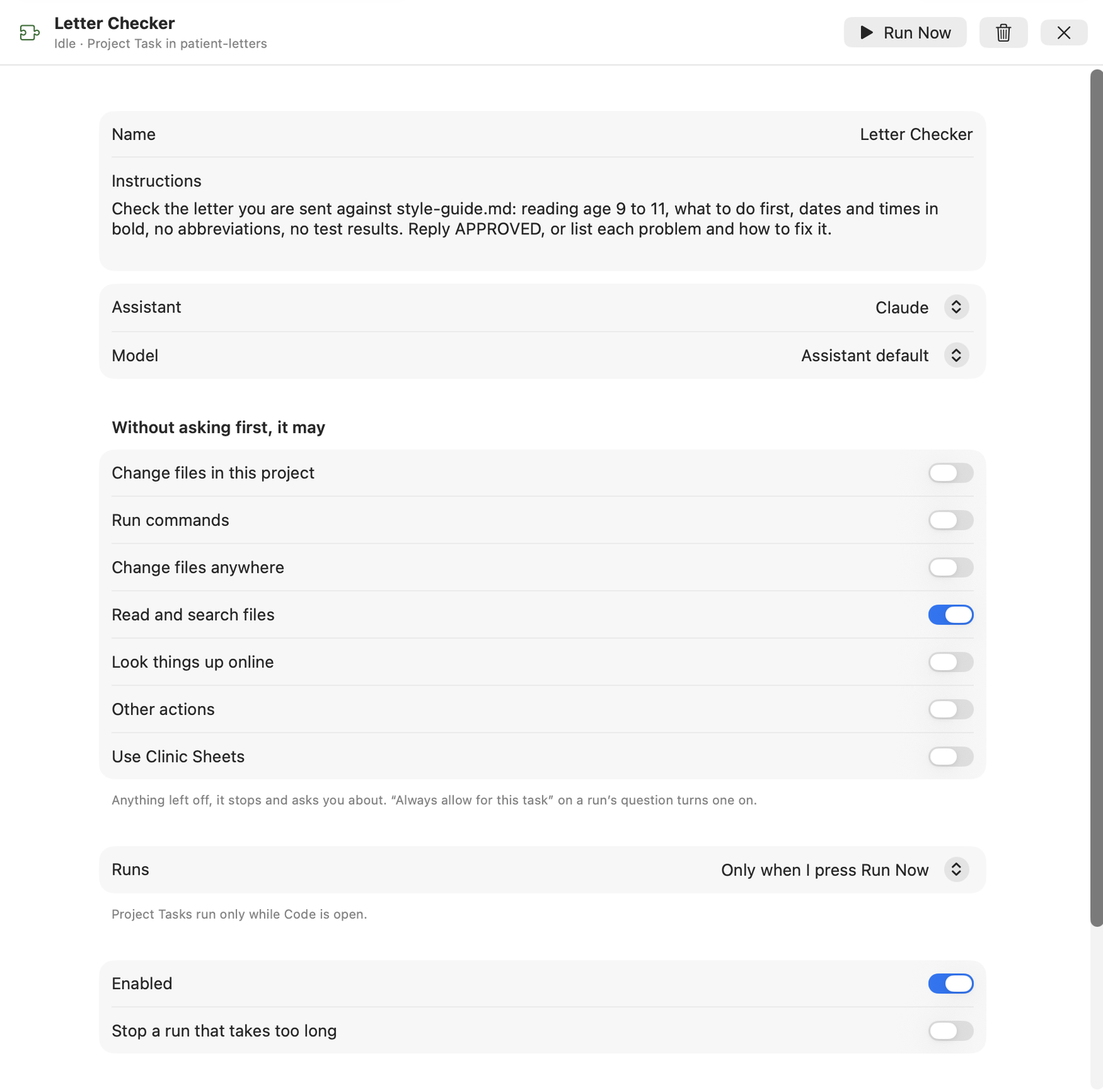
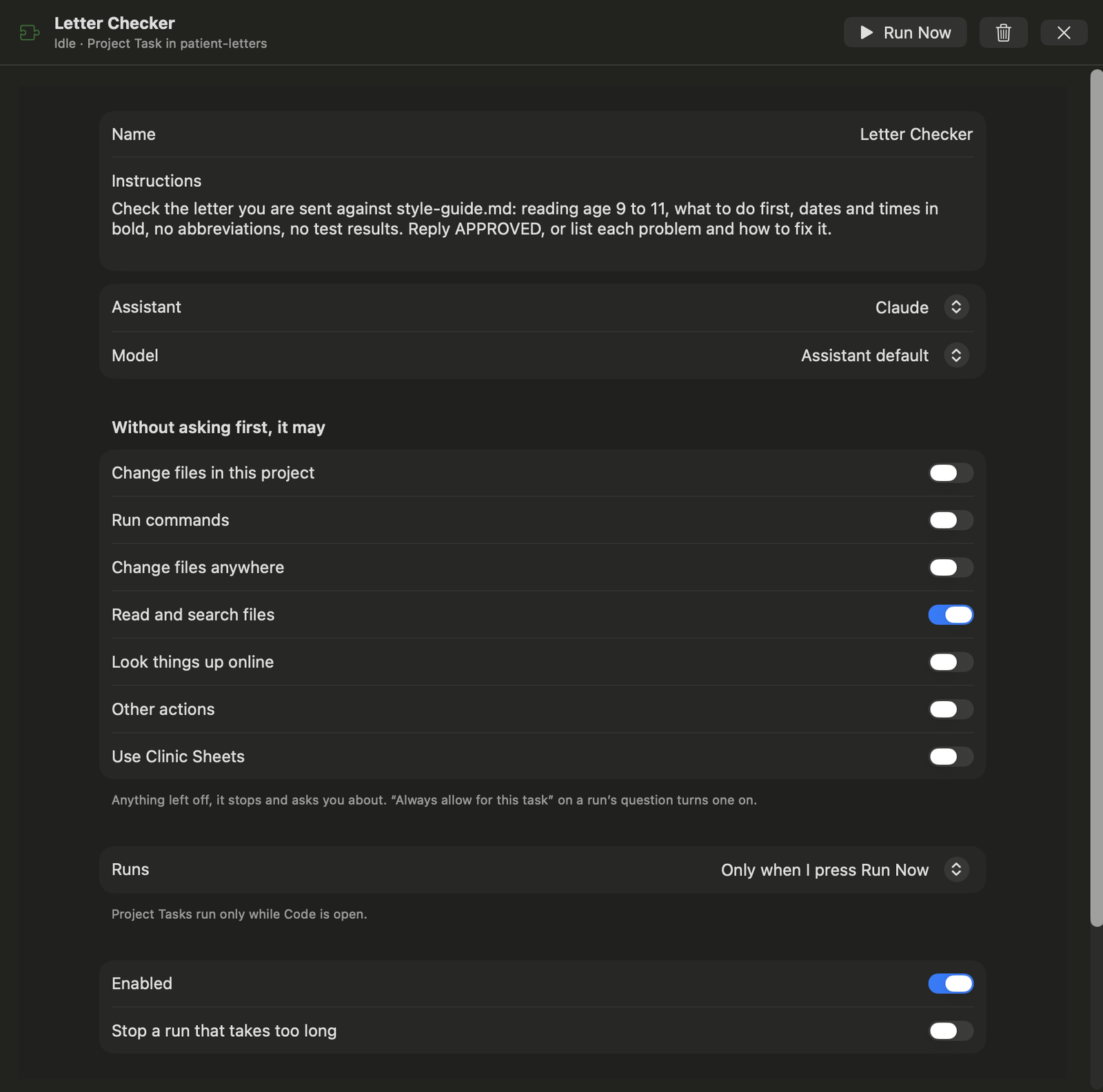
Without asking first, it may
These switches decide what the task may do without stopping to ask you. Anything left off, it stops and asks. Start with as little as the job needs, such as Read and search files. If a run asks for something you're happy to allow every time, choose Always allow for this task on its question and the matching switch turns on.
If the workspace has Connections, each one has a switch here too, so a task can use a spreadsheet without asking without being allowed to use anything else.
When it runs
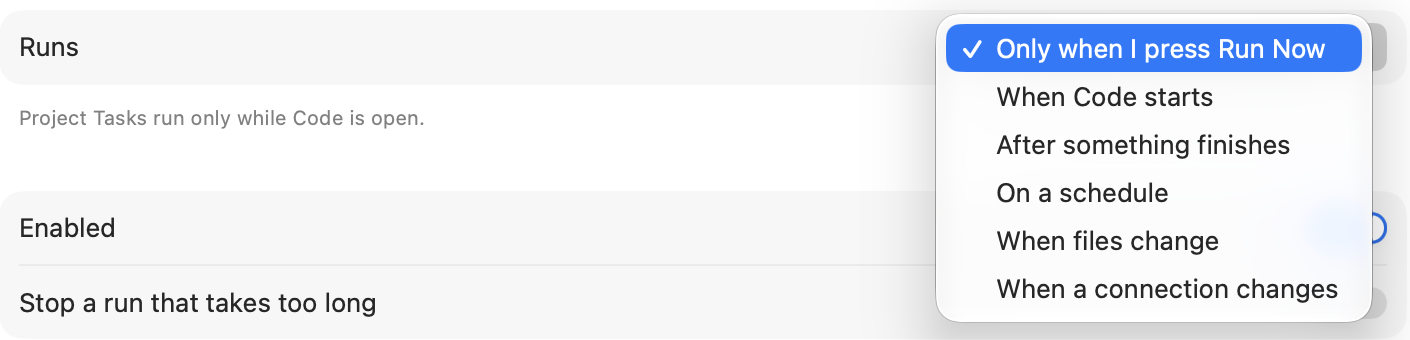
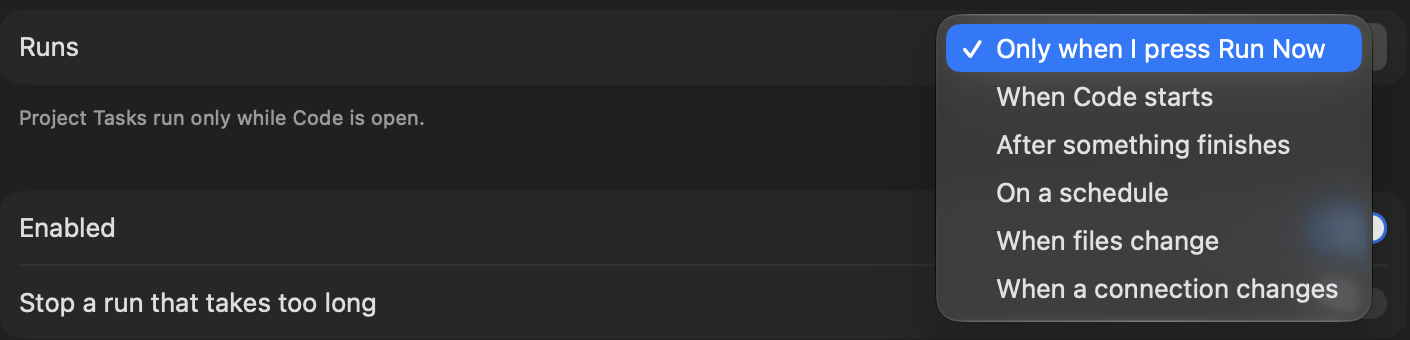
| Choice | Runs |
|---|---|
| Only when I press Run Now | Only when you click Run Now, or when the project asks it to, as a critic does. |
| When Code starts | Once each time you open Inferise Code. |
| After something finishes | When a project in the workspace finishes a reply, or when another task succeeds. You can add a delay. A task that waits on another task is told what that task found. |
| On a schedule | At the times you choose, such as every Monday at 7:00. |
| When files change | When files in a folder are added, changed or removed, once the folder has been still for a few minutes. The run is told which files changed. Its own changes never start it again. |
| When a connection changes | When rows in a connected spreadsheet or table change. See Connections. |
A task that would start itself in a loop, for example two tasks that each wait for the other, can't be saved.
Other settings
- Enabled turns the rule on or off. Run Now still works when it is off.
- Stop a run that takes too long sets a time limit for each run.
Past runs
A task's page lists its recent runs, newest first, with what each one found. Click a run to read it in full.
When a task runs on its own, a notice appears in its project's conversation with two buttons:
- Review opens the run.
- Continue from this puts the task's answer into the message box, so you can ask the project to act on it.
Templates
Templates are ready-made tasks for common jobs, such as Copy changes to another place, Report what changed and Handle each new entry. Choose New from a Template… from the ribbon's + menu. Unlike a workflow, a template only adds tasks; it never replaces what the project already has.
Something unclear or out of date? Tell us and we will fix it.