

Projects
A project is one folder and the assistant that works in it. Here is how to talk to it, follow it on the ribbon and decide what it may do without asking.
A project is a folder on your Mac and an assistant that works inside it. The assistant can read the files in that folder, write new ones and change them. Everything you say to it, and everything it does, is kept with the project, so you can pick up where you left off.
Every project belongs to a workspace.
The conversation
The middle of the window is your conversation with the project's assistant. Your messages appear on the right, its replies on the left. Long replies fold up to a one-line summary; click one to read it in full.
The message box


- Press Return to send. Press Shift-Return to start a new line.
- Attach files or images with the paperclip, or drag them onto the box. You can also paste an image you have copied.
- The first menu shows which assistant the project uses. Choosing a different one asks you first, because the project starts a new conversation with it. It offers to bring your plan and to-do list along.
- The second menu chooses the model, the version of the assistant. Default is a good choice.
- The third menu chooses how the assistant works, for example whether it asks before every change or plans first. The choices come from the assistant you use.
While it works
You don't have to wait. If you think of something while the assistant is busy, type it and send it. Depending on the assistant, it either reads your message at its next step, or saves it and sends it as soon as the current reply is finished.
To stop it, click the stop button that replaces the send button while it works.
Start fresh
A long conversation slows the assistant down and makes it more likely to mix things up. When that happens, click the round arrow to the left of the menus. The assistant forgets the conversation so far and starts with a clean slate, but your earlier messages stay on screen, above a line that says the assistant won't remember them. Inferise Code suggests this when a conversation is getting full.
Answering requests
Before the assistant does anything you have not allowed, it shows a card and waits. Read what it wants to do and choose an answer. The Getting started tutorial explains each button.
If you choose Always allow in this project, the project will do that kind of thing without asking from now on. To take it back, open Workspace Information on the right; the permissions you have given are listed under each project.
The Project Ribbon
The ribbon along the bottom of the window has a chip for every project in the workspace. Click a chip to switch to that project.
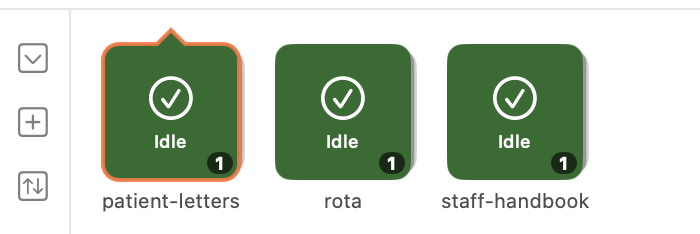
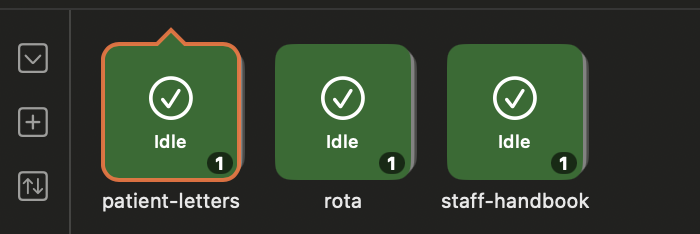
Each chip's label says what the project is doing:
| Label | What it means |
|---|---|
| Working | The assistant is busy. |
| Permission | It is waiting for you to answer a request. |
| Needs Input | It is waiting for you to answer a question or type your next message. |
| Waiting! | It has been waiting for you for a while. |
| Idle | Nothing is happening. |
| Neglected | Nobody has worked in the project for a week or more. |
The buttons on the left of the ribbon fold it away, add a project or a Project Task, and change the order of the chips.
Accounts
If you have more than one account with the same assistant, for example one for work and one personal, each project can use a different one. This is handy when one account runs out of allowance for the day.
- Click the account at the top right of the conversation.
- Choose the account this project should use, or click Sign In… to add one.
Switching accounts starts the conversation fresh, because the assistant can't carry a conversation from one account to another. To manage accounts for every project, open and click Coding Assistant.
Where a project's files are kept
The assistant only works in the project's folder. Inferise Code keeps its own records for the project, such as conversation history, plans and the to-do list, on your Mac. If you rename or move the project's folder, Inferise Code notices and follows it.
Something unclear or out of date? Tell us and we will fix it.