

Connections
Let the projects in a workspace reach outside services, such as a Google spreadsheet, an Airtable base or GitHub.
A Connection lets the assistant work with something outside your Mac: reading a shared spreadsheet, adding rows to a table, or looking through your team's GitHub projects. Without one, the assistant only sees the files in the project's folder.
Connections belong to a workspace. Every project in that workspace can use them, in its conversation, its Project Tasks, and when it asks another project for help. Projects in other workspaces can't.
Open Connections
- Open the right panel and click the i button to show Workspace Information.
- Click Connections… next to the list of projects.
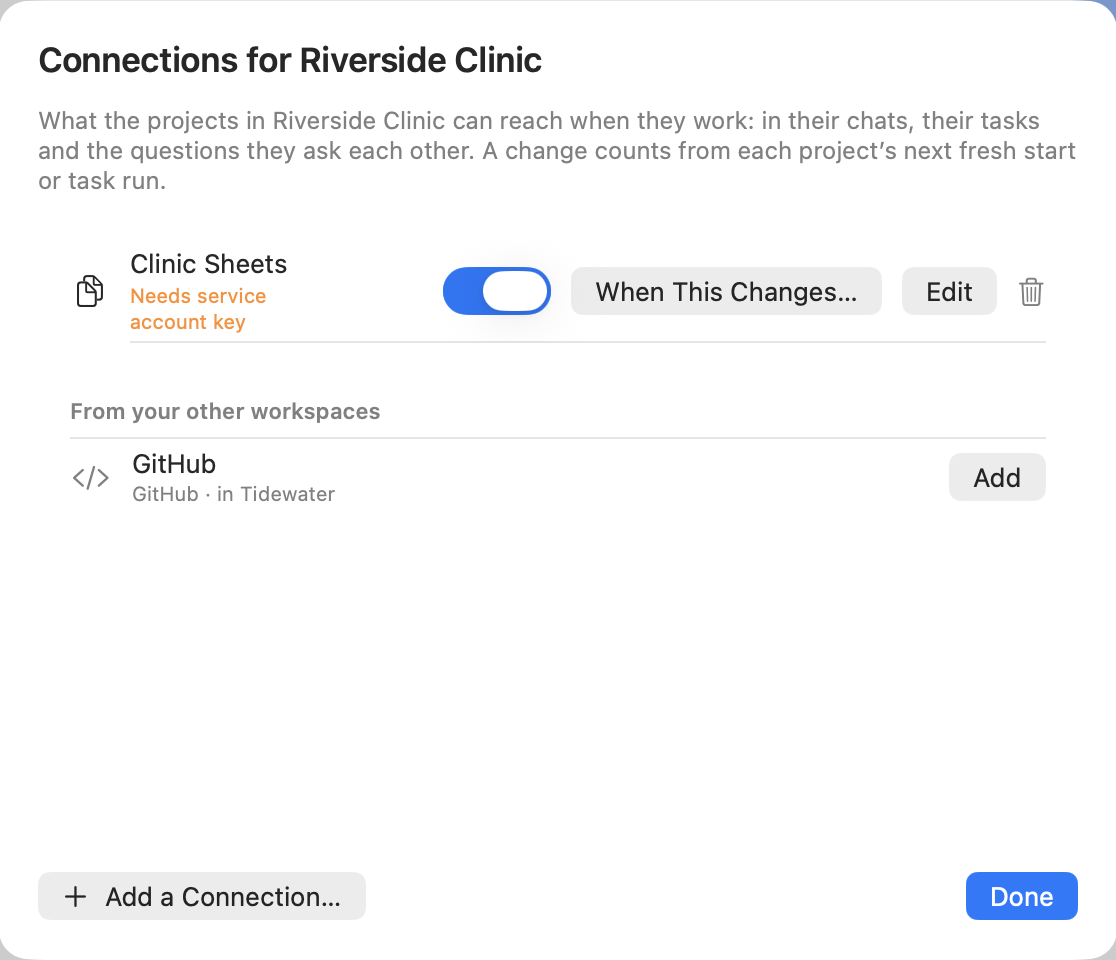
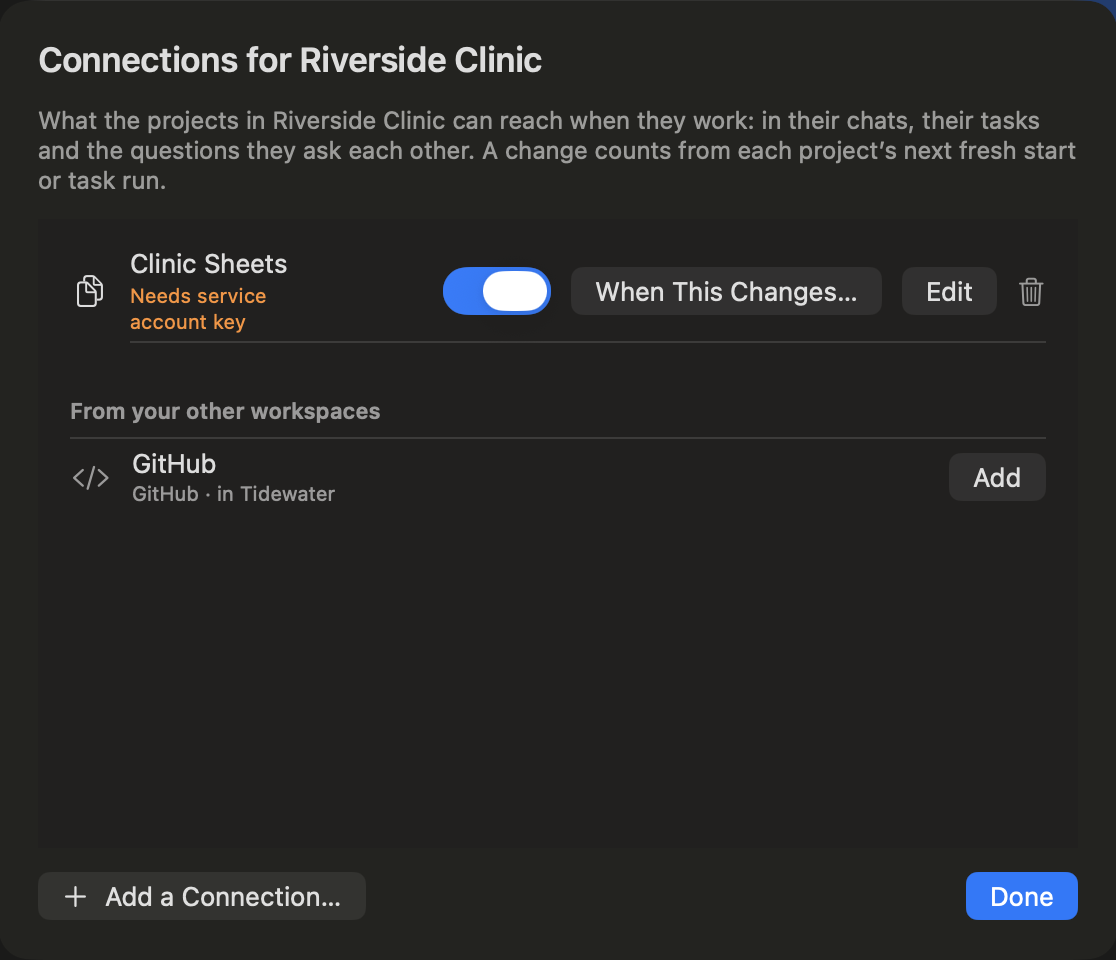
Each connection shows whether it is ready to use. Needs service account key or a similar note in orange means something is missing; click Edit to fill it in.
Connections set up in your other workspaces are listed under From your other workspaces. Click Add to use the same one here. Its key is copied too, so you don't have to enter it again.
Add a connection
- Click Add a Connection….
Choose what it should connect to.
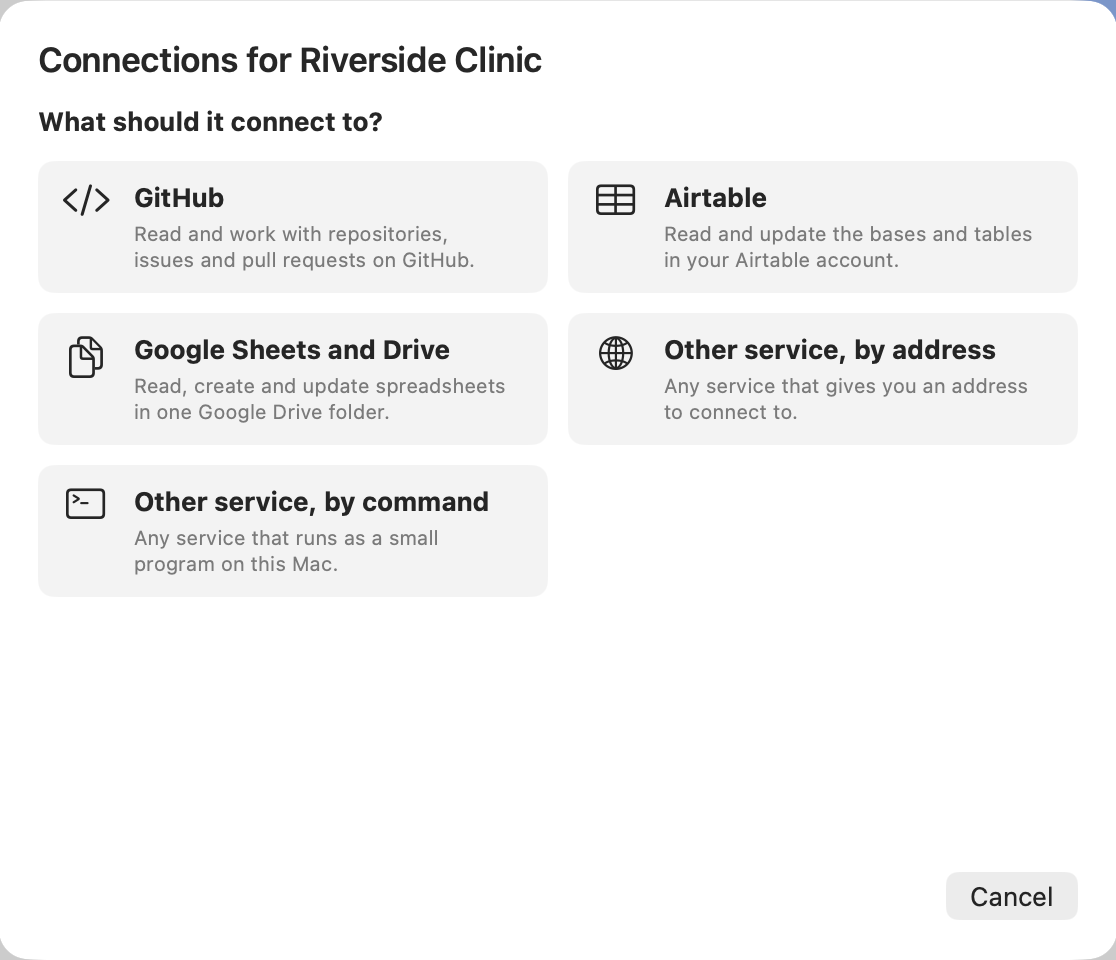
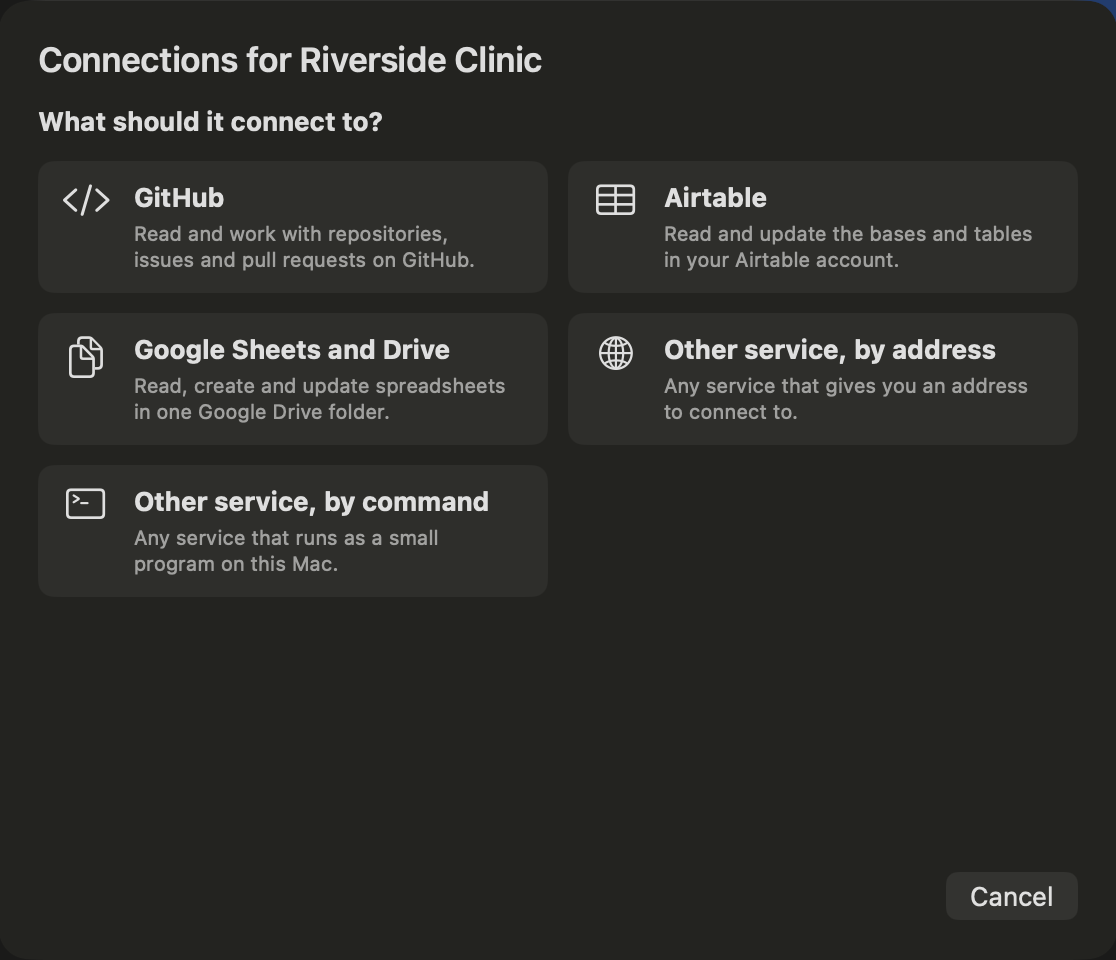
The first three are built in. The last two are for any other service. - Follow the steps for that service, then click Done.
A change to Connections counts from each project's next fresh start. When you close the window after a change, Inferise Code offers to start fresh every project in the workspace that has a conversation going.
Built-in connections
| Connection | What it can do | How you sign in |
|---|---|---|
| GitHub | Read and work with your team's code and issues on GitHub. | Sign in with your GitHub account, or paste a key you made on GitHub. |
| Airtable | Read and update the bases and tables in your Airtable account. | Sign in with your Airtable account, or paste a key you made in Airtable. |
| Google Sheets and Drive | Read, create and update spreadsheets in one Google Drive folder. | A key from Google Cloud, and the folder shared with it. |
Where you can sign in, a browser window opens on the service's own website and you sign in there as usual. Where you paste a key (some services call it a personal access token), make one with only the access this workspace needs.
Other services
Many services now offer a way for AI assistants to connect to them. These use an open standard called the Model Context Protocol (MCP). You don't need to know how MCP works: if a service says it supports MCP, you can connect it here.
- Other service, by address is for a service that runs on the internet and gives you an address to connect to. If it needs you to sign in, Inferise Code notices and offers a sign-in button. Otherwise it may ask for a key.
- Other service, by command is for a service that runs as a small program on your Mac. Its instructions tell you the command to enter.
Start work when a connection changes
A Project Task can watch a sheet or table and run when its rows change. Click When This Changes… next to a connection to choose from ready-made templates:
- Copy changes to another place keeps a second sheet or table in step with the first.
- Report what changed writes a short, plain account of each change.
- Handle each new entry deals with each new row, such as a form's answers, the way you describe.
See Project Tasks for how often it looks.
Keys and sign-ins stay on your Mac
Keys and sign-ins are kept in your Mac's keychain, never in the project's folder or in Inferise Code's own files. When you delete a connection, its key is deleted too. A sign-in is shared by every workspace on this Mac that uses the same service.
Asking first
The assistant asks before it uses a connection, as it does for anything else. To let a Project Task use one without asking, turn on that connection's switch in the task's settings, under Without asking first, it may.
Something unclear or out of date? Tell us and we will fix it.