

Your first Project Task
Set up a small job that runs on its own, every week or whenever a document changes.
What you'll do
- Make a Project Task with its own instructions.
- Have it run every week, or whenever a document in a folder changes.
- Read what it found.
What you need
- A project in Inferise Code. If you don't have one yet, start with Getting started.
- A small job you find yourself asking for again and again.
What makes a good task
A Project Task does the same job each time it runs, so pick something repetitive and well defined. For example:
- Every Monday, check next week's rota for gaps.
- Whenever a policy changes, summarise what is different for staff.
- Every evening, list the letters still marked as drafts.
Each run starts fresh in the project's folder, so write the instructions as if for someone who has never seen the job before.
Make the task
- Click the + button on the left of the Project Ribbon, at the bottom of the window.
- Choose New Project Task….
- Under Project, check the task is going into the right project.
- Leave Name blank to have one made from the instructions, or type your own.
- In Instructions, say what to do and what not to do. Ending with "Change nothing" keeps a checking job from editing your files.
Under Without asking first, it may, turn on only what the job needs. A job that only reads needs just Read and search files.
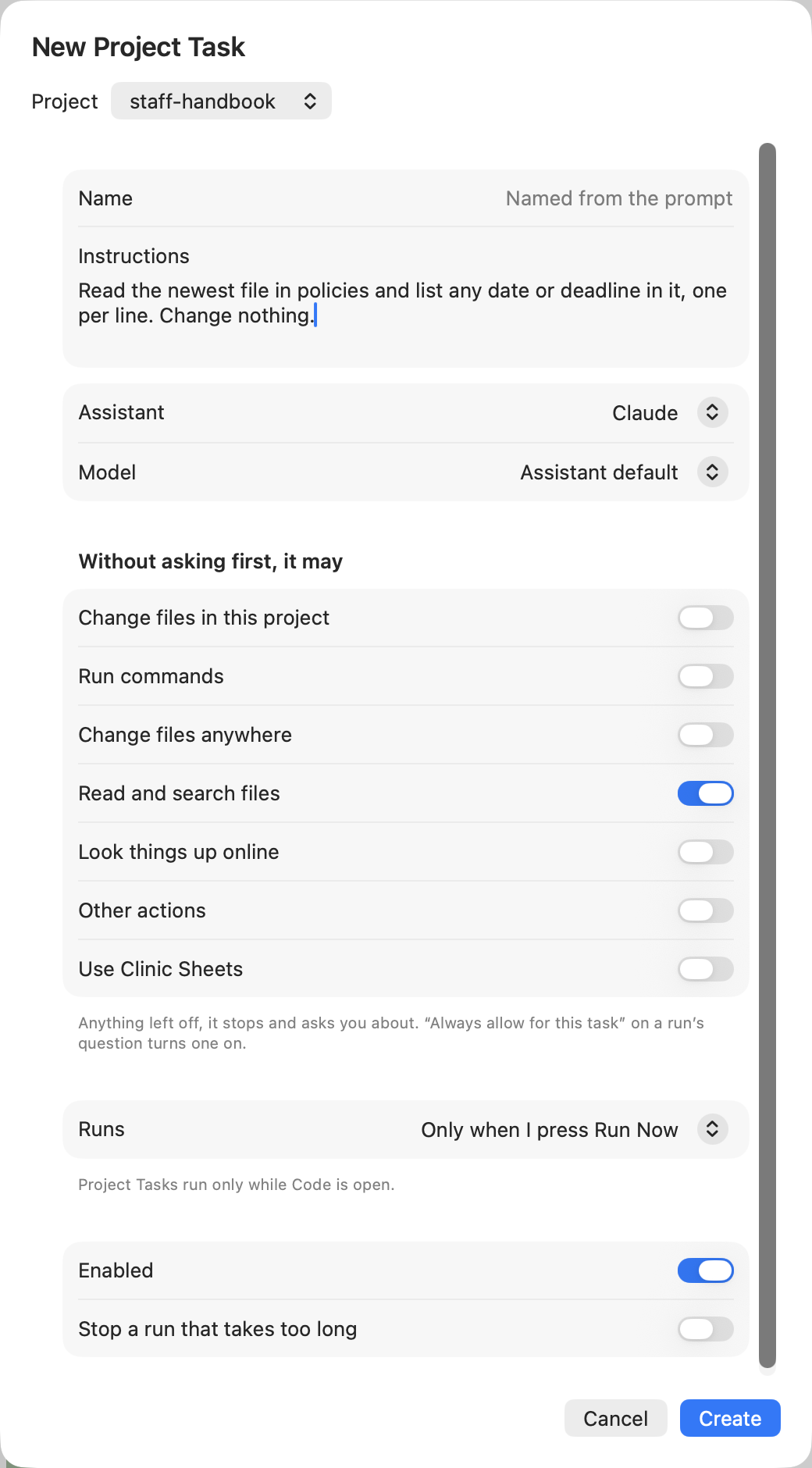
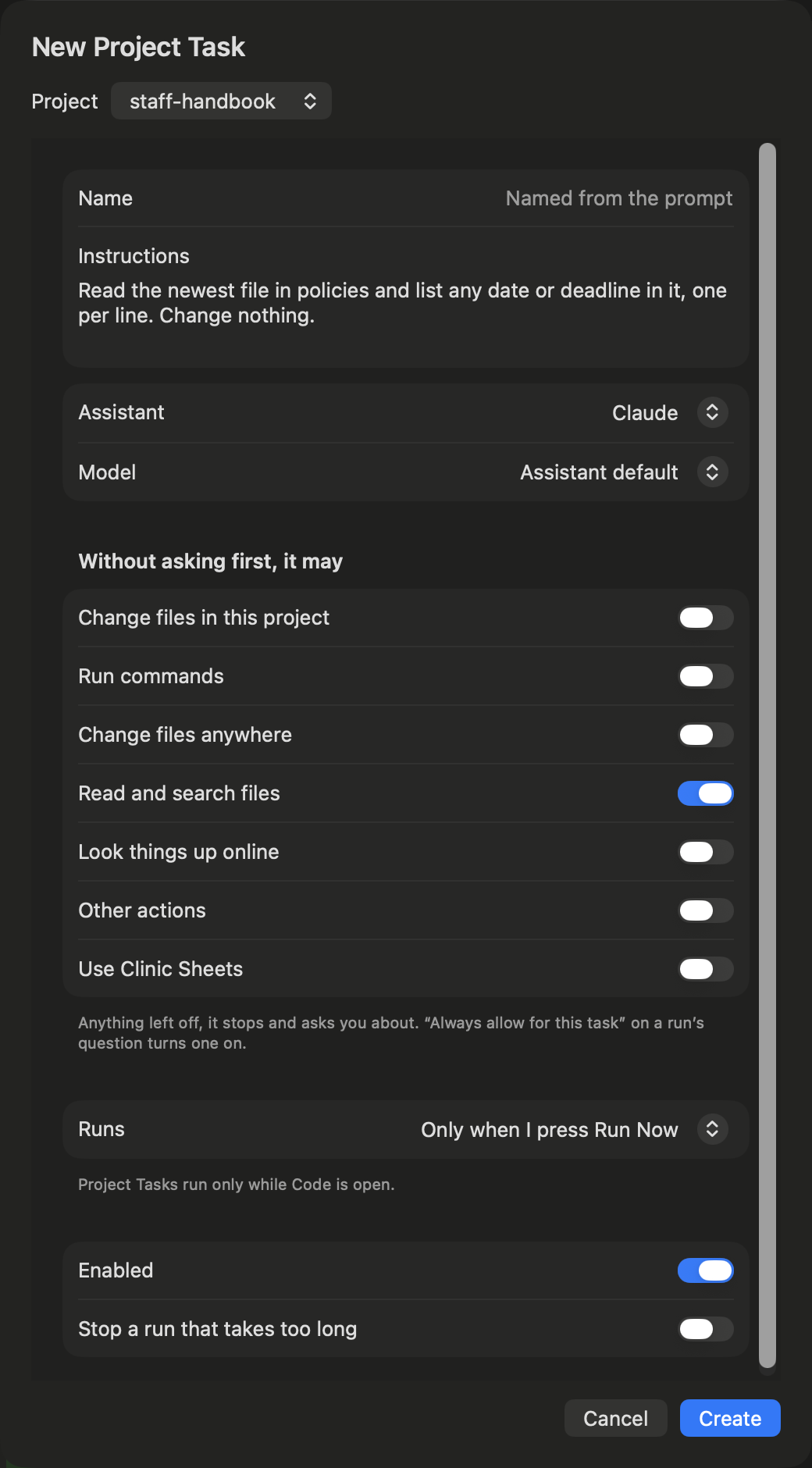
Anything left off, the task stops and asks you about.
Choose when it runs
Every week
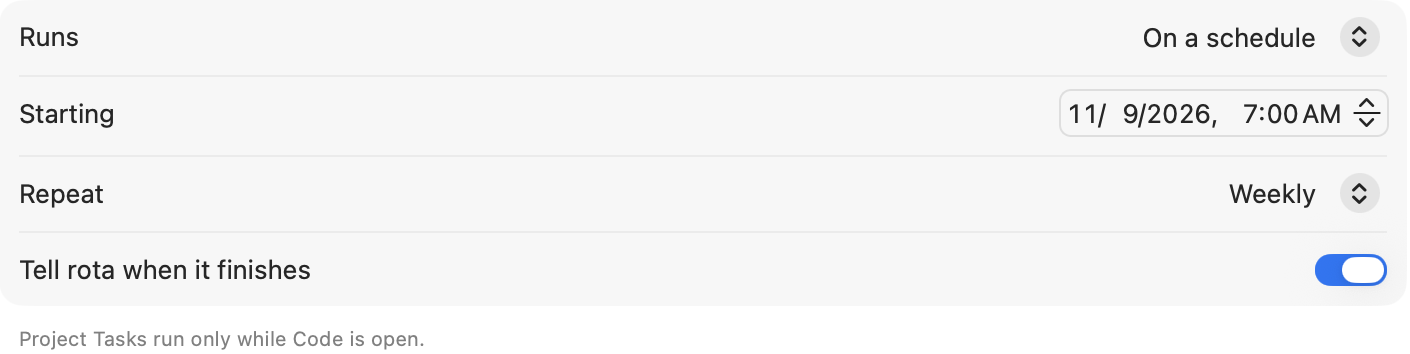
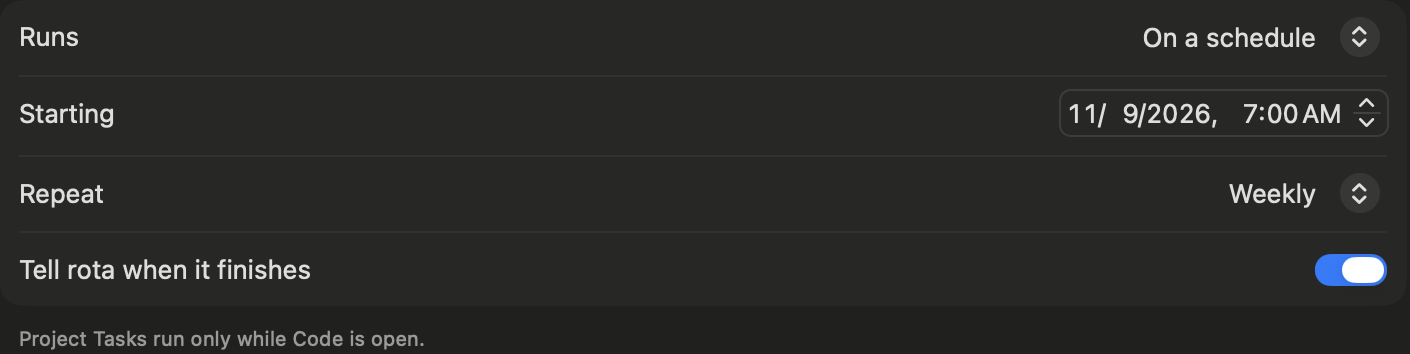
- Set Runs to On a schedule.
- Under Starting, choose the first day and time it should run.
- Under Repeat, choose how often, such as Weekly.
- Leave Tell rota when it finishes on, so its answer shows in the project's conversation.
Whenever a document changes
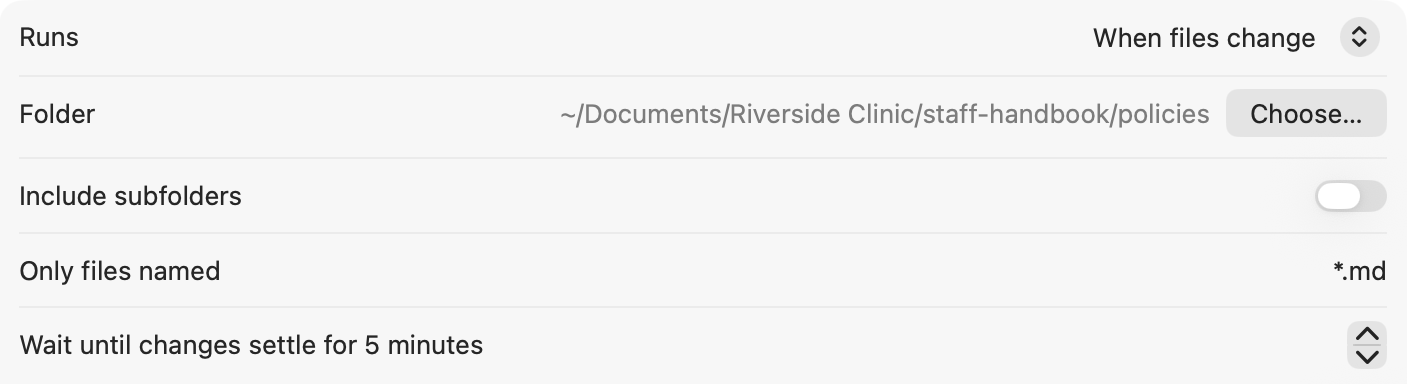
- Set Runs to When files change.
- Click Choose… next to Folder and pick the folder to watch.
- To watch only some files, fill in Only files named. For example,
*.mdmeans every file ending in .md. - Set how long to Wait until changes settle. Five minutes gives people time to finish editing before the task runs.
Click Create to save the task.
Read what it found
When the task runs on its own, a notice appears in its project's conversation.


- Click Review to read the full answer.
- Click Continue from this to put the answer into the message box, so you can ask the project to act on it.
Project Tasks run only while Inferise Code is open. If it was closed when a scheduled run was due, the task runs once when you open it again.
What's next
- Connect a spreadsheet and run a task whenever it changes.
- Read all the ways a task can start in Project Tasks.
Something unclear or out of date? Tell us and we will fix it.