

Set up a workflow
Choose a way of working for a project, and set up a critic that checks every draft before you see it.
What you'll do
- Learn which way of working suits which kind of job.
- Set up A maker and a critic on a project, so every draft is checked before it reaches you.
- See the critic's verdicts in the conversation.
What you need
- A project in Inferise Code. If you don't have one yet, start with Getting started.
- A short list of rules the work should follow, such as a style guide.
What a workflow is
On its own, a project works the way a single helpful colleague would: you ask, it does the work, it shows you the result. A workflow adds more colleagues around it. One might check the work, another might pick up the follow-up jobs, and another might keep an eye on a folder for new files.
Each extra colleague is called a helper. Helpers are Project Tasks, small jobs with their own instructions, which the workflow wizard sets up for you. A project has one workflow at a time.
Choose a way of working
Inferise Code offers seven ways of working. Pick the one that matches the job, not the one that sounds most impressive. Most projects need only one of the first three.
| Way of working | Choose it when |
|---|---|
| A maker and a critic | Quality matters more than speed, and you can write down the rules. Letters, leaflets, policies, anything that goes to the public. |
| Plan first, then do it | You want to read and approve the approach before any work starts. |
| A project with follow-ups | The same jobs come after every piece of work, such as updating an index or checking spelling. |
| Keep something up to date | New files arrive in a folder, or people change a shared spreadsheet, and the work should follow along. |
| One project that figures it out | Questions need some digging before they can be answered. |
| A front desk for specialists | Requests vary a lot, and each kind suits a different helper. |
| A lead who splits up the work | One big goal breaks into parts that can be done separately and put together. |
Open the workflow wizard
There are two ways in:
- The first time you add a project, Inferise Code asks Want help getting set up? Click Yes, Help Me Set Up.
- At any other time, open the panel on the right of the window. Under How Projects Work, click Set Up a Workflow… next to the project. If it already has one, click Edit.
Step 1: Choose a way of working
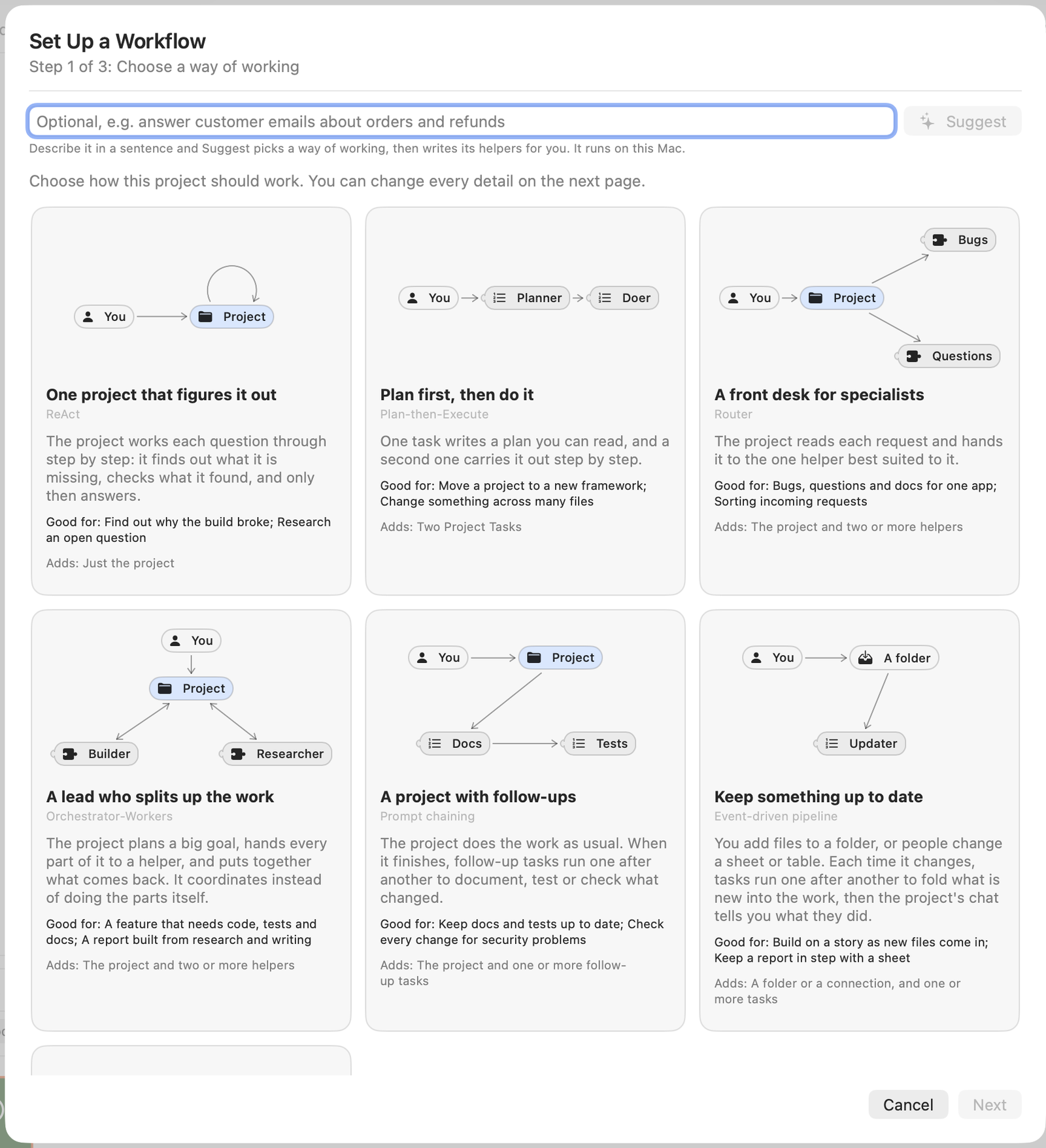
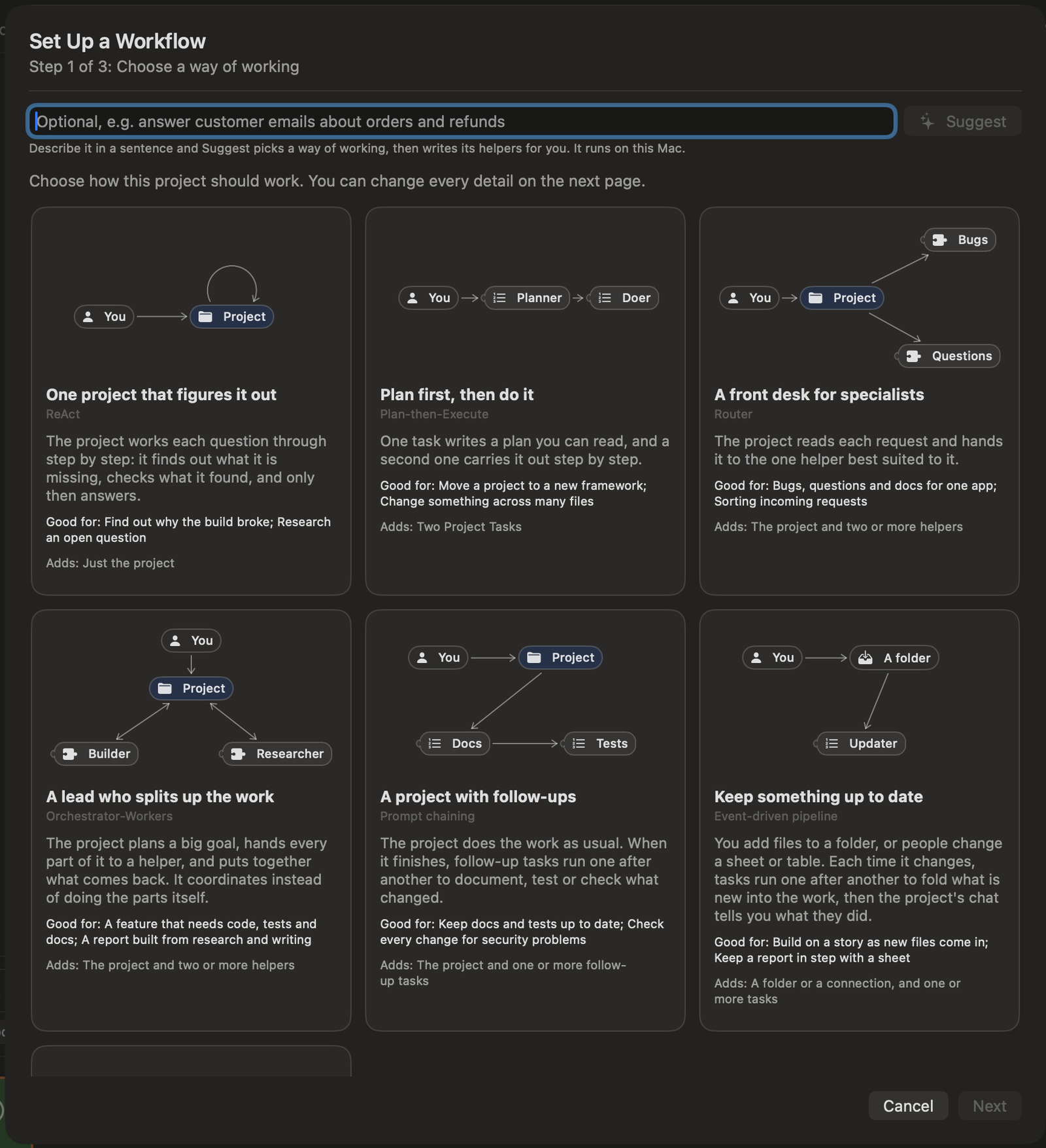
- Read the cards. Under each one, Adds tells you what will be set up.
- Click A maker and a critic.
- Click Next.
Step 2: Make it yours
The picture shows how the work flows. You ask the project, the project makes a draft, and before you see it, the critic reviews it and sends back fixes until it is happy.
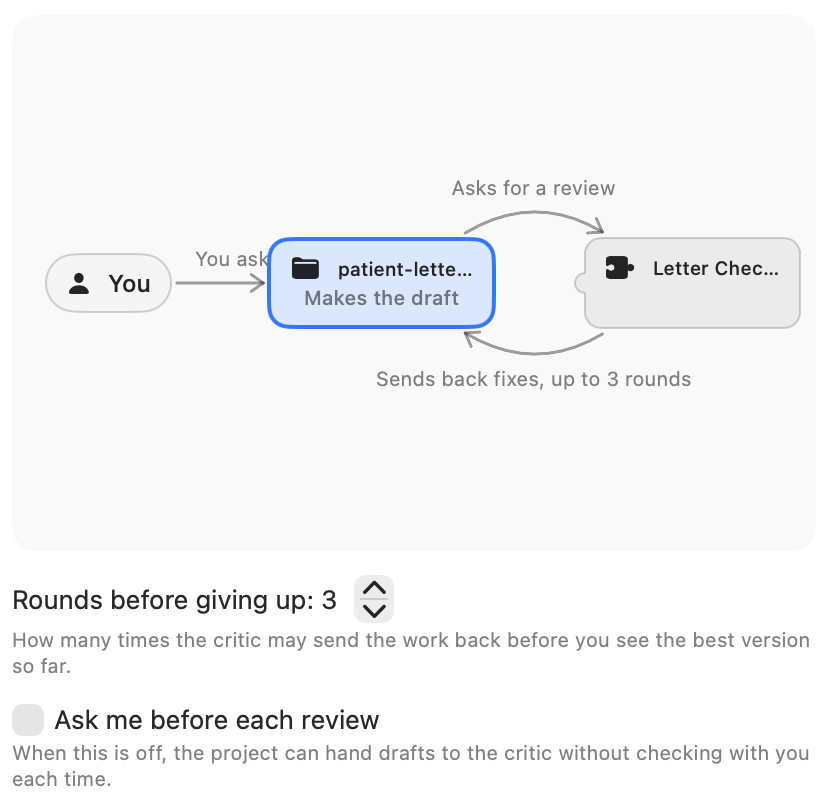
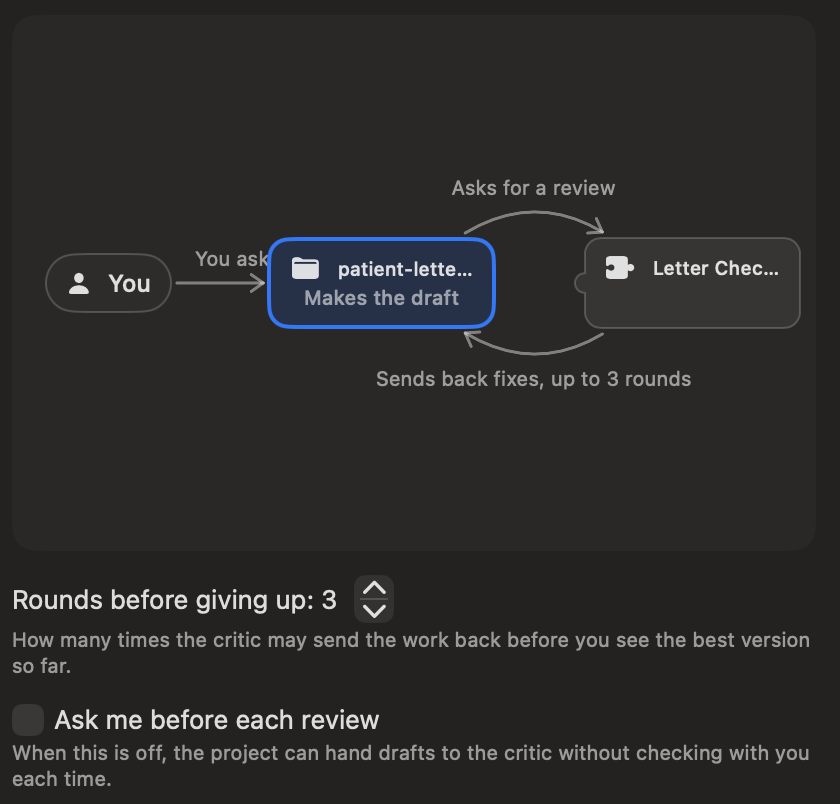
- Set Rounds before giving up. This is how many times the critic may send the work back before you see the best version so far. Three is a good start.
- Leave Ask me before each review off, so the project can hand drafts to the critic without checking with you each time. Turn it on if you'd like to approve each handover.
- Click the critic in the picture to set it up.
Set up the critic
The critic is only as good as its instructions. Tell it exactly what to check and how to answer.
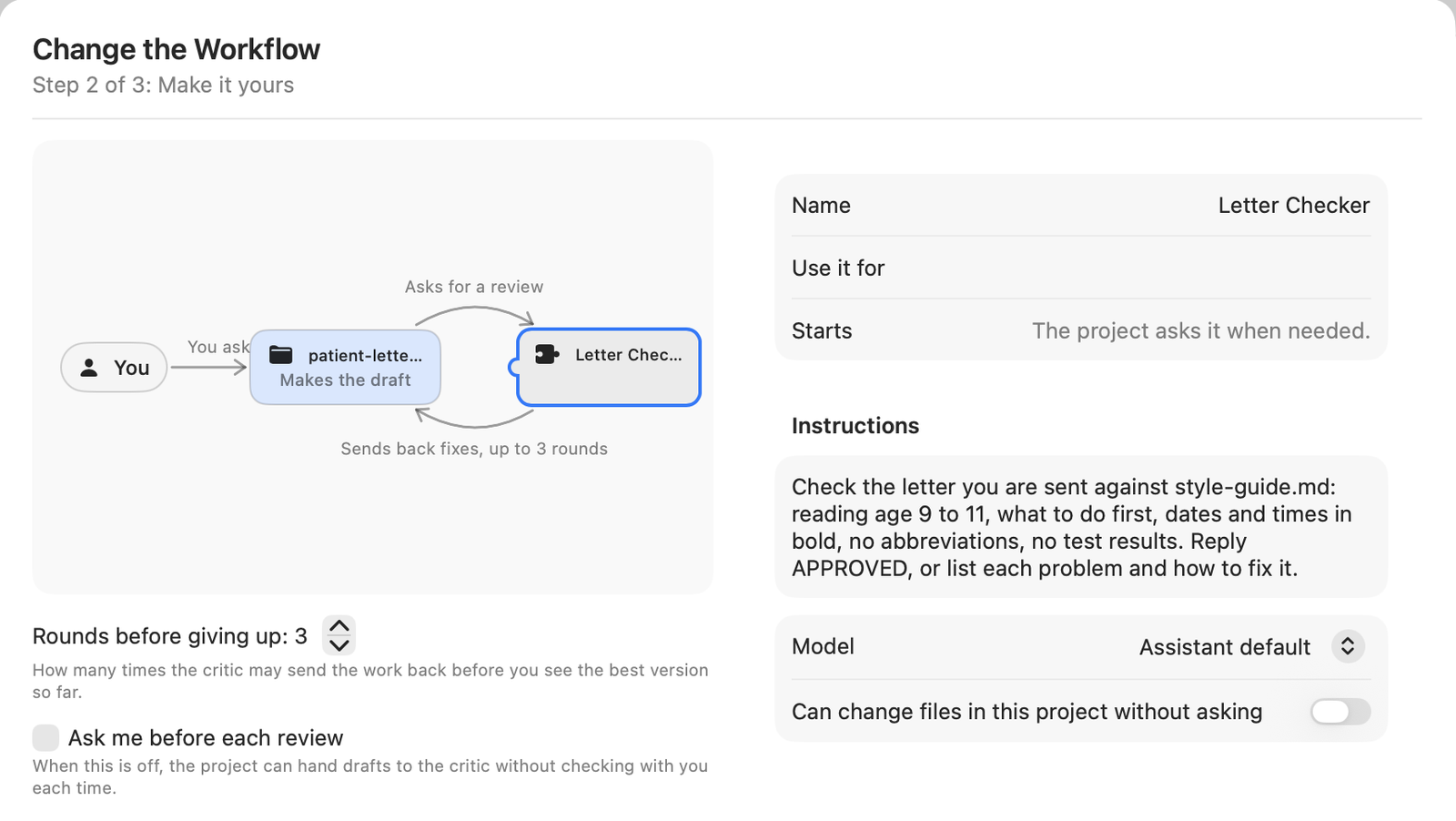
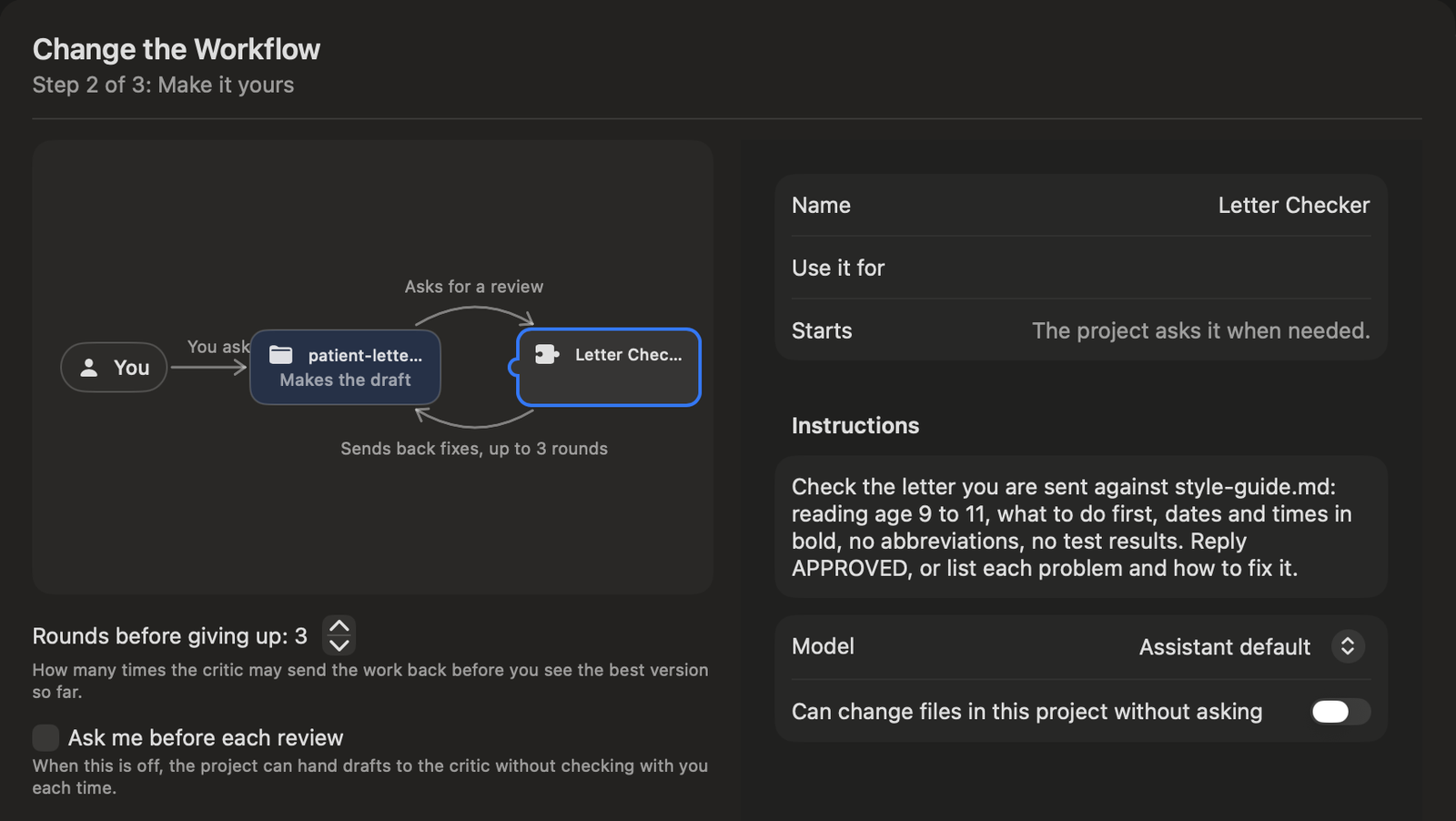
- In Name, give the critic a name that says what it does, such as "Letter Checker".
Under Instructions, list the rules. For example:
> Check the letter you are sent against style-guide.md: reading age 9 to 11, what to do first, dates and times in bold, no abbreviations, no test results. Reply APPROVED, or list each problem and how to fix it.
- Leave Can change files in this project without asking off. A critic should point out problems, not fix them itself.
- Click Next.
Step 3: Check what will be added
The last step lists what the wizard will add to your project, such as the critic's Project Task. Read it, then click Create. When you are changing an existing workflow, this step is called Check what will change and the button says Save Changes.
See the critic at work
Ask the project for something the critic should check, for example: Draft a welcome letter for new patients.
The project writes a draft and sends it to the critic. Each time the critic answers, a short notice appears in the conversation:


- Click Review to read the critic's full answer.
- Click Continue from this to put its answer into the message box, ready for you to add to and send.
The project then shows you the approved draft and tells you what the critic caught.
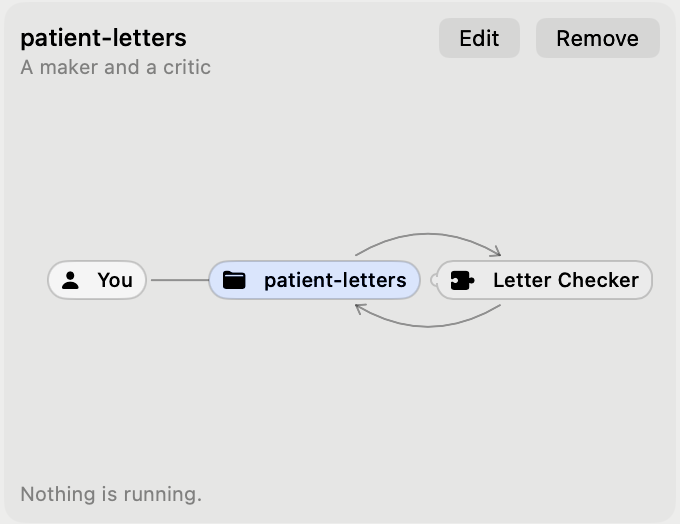
The panel on the right shows the workflow as a small picture, so you can always see how a project works.
What's next
- Read more about workflows, including templates that add a single job without replacing the workflow.
- See Project Tasks for jobs that run on a schedule or when files change.
- Plan a bigger piece of work and add a goal for the critic to check every page.
Something unclear or out of date? Tell us and we will fix it.