

Prompts and the ToDo list
Save the messages you send often, and keep a list of small jobs to hand to the assistant later.
Two panes on the left of the window save you typing: Prompts for messages you send again and again, and ToDo for jobs you want to remember to ask for.
Prompts
A prompt is a message you have saved so you can reuse it, such as "Check this letter against our style guide" or "Rewrite this so anyone can read it easily".
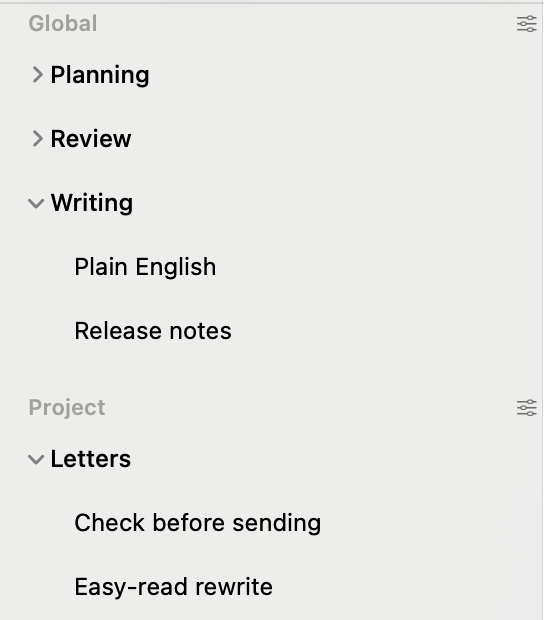
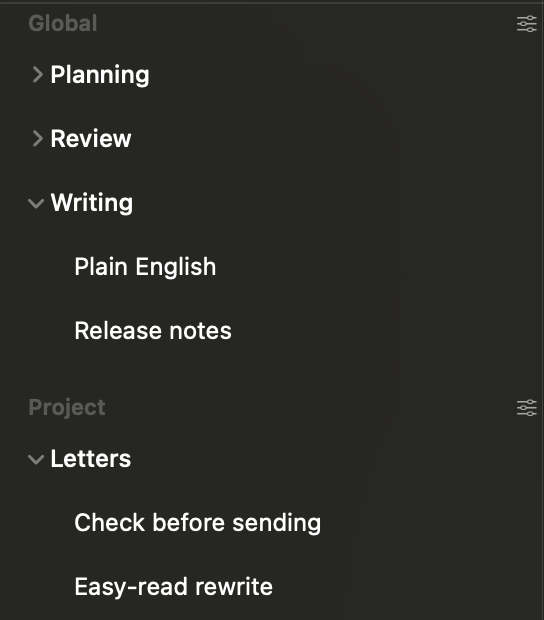
Prompts are kept in groups, in two places:
- Global prompts are available in every project.
- Project prompts belong to the project you're in.
Use a prompt
- Click the book button at the top of the left panel to show Prompts.
- Click the arrow beside a group to open it.
- Double-click a prompt. Its text goes into the message box, where you can change it before you send it.
Add or change prompts
- To add one, select a group and click + at the bottom of the pane. Give it a name and the text to send.
- To change one, click it once and edit it.
- To remove one, select it and click −.
- Click the settings button beside Global or Project to add, rename or delete groups.
Prompts can be shared with colleagues: Export… saves them to a file, and Import… reads a file someone has sent you.
The ToDo list
The ToDo list is a simple note for each project: things you want the assistant to do, but not right now.


Write tasks
- Click the list button at the top of the left panel to show ToDo.
- In the note, start each task with two hash signs and a space, then its title, such as
## Blood test reminder. - Underneath, write what you want done, in as much detail as you like.
- Click the tick button at the top right to save and close the note.
Each task appears in the list on the left. Type in Filter at the bottom to find one.
Hand a task to the assistant
Click the paper plane beside a task. The task is sent to the assistant and removed from the list. To remove a task without sending it, right-click it and choose Delete.
Something unclear or out of date? Tell us and we will fix it.