

Terminals
Open a command window beside the conversation, for the times you want to type commands yourself.
Most people never need a terminal. If you or a colleague are used to typing commands, Inferise Code can open a terminal (a window for typing commands) beside the conversation, already in the project's folder.
Open a terminal
Click the terminal button in the toolbar at the top of the window, or press ⌃⌘T. Each click adds another terminal beside the last one.
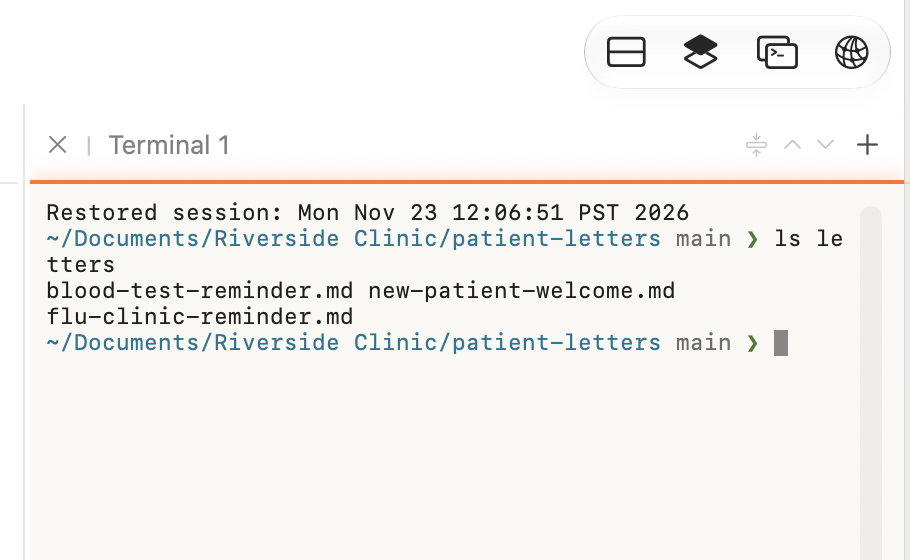
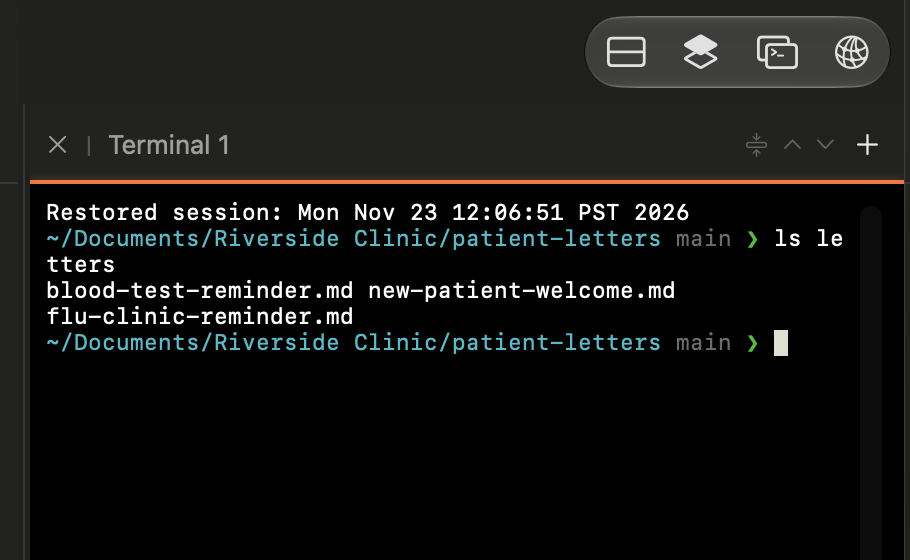
The terminal follows your Mac's light or dark appearance, and keeps running while you work in the conversation.
Arrange terminals
The toolbar's first two buttons arrange terminals and the conversation:
| Button | What it does | Shortcut |
|---|---|---|
| Side by side | Places the terminals beside or below the conversation. | ⇧⌘O |
| Overlap | Lays the terminals and the conversation on top of each other, each filling the window. Press it again to swap which is on top. | ⌘↑ |
Close a terminal with the × at the top left of its pane.
Text size
Press ⌘+ to make terminal text larger, ⌘− to make it smaller, and ⌘0 to go back to the usual size.
Something unclear or out of date? Tell us and we will fix it.